WordPress 7.1 “Mary Lou” shipped on August 19, 2026, on the final day of WordCamp US, and most of the coverage in the first 48 hours has focused on the headline features — new hover and focus styling, the Tabs and Playlist blocks, an upgraded Notes system. Those are genuinely useful. They’re also not the part of this release that’s going to break your site.
The change most site owners haven’t heard about yet is quieter and matters more: the block editor now runs inside an enforced iframe, and image processing that used to happen on your server now happens in the visitor’s browser before upload. Neither of those is a headline feature. Both are exactly the kind of infrastructure-level change that silently breaks older plugins, custom blocks, and page builder integrations that were never built to expect them.
This is the pattern with almost every major WordPress release: the features that get the blog-post treatment are rarely the ones that cause support tickets. The support tickets come from the unglamorous, structural changes buried three paragraphs into the official Field Guide — the ones most site owners never read because they don’t sound exciting enough to click on. This guide is written specifically for that gap: not what’s new, but what to actually test before you trust this release on a site people depend on.
This is a practical pre-update testing guide, not a features roundup — what to actually check on a staging copy of your site before you touch production, and why each item matters.
Why This Release Deserves More Caution Than Usual
Most WordPress point releases are safe to update same-day. This one is different for a specific, structural reason: WordPress 7.1 enforces iframe mode for the block editor across all block themes, a change that was optional and gradually rolled out in earlier versions. If you’re running a block theme, this is no longer something you can opt out of.
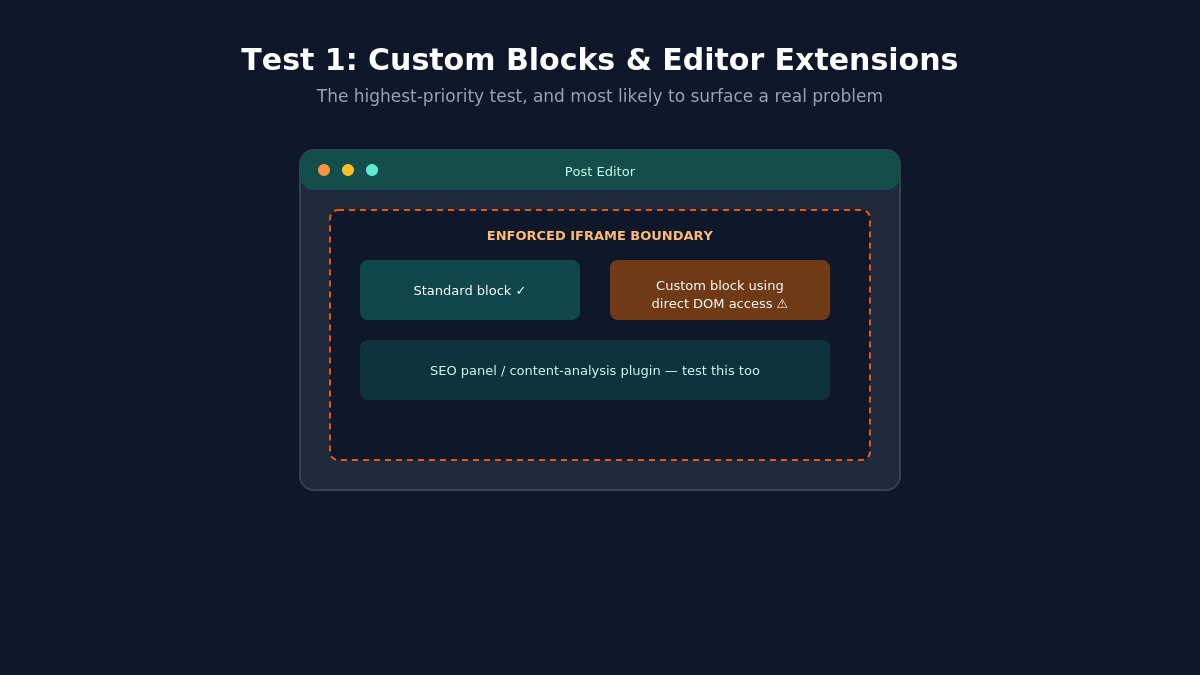
The practical effect is that any plugin or custom block that reaches directly into the editor’s DOM — instead of using WordPress’s documented block APIs — can stop working entirely, sometimes without an obvious error message. This has historically been a small minority of plugins, but it’s disproportionately common among older custom-built blocks, some page builder integrations, and a handful of SEO and content-analysis tools that inject UI directly into the editor screen.
Layer on top of that the fact that this is also groundwork for an eventual React 19 upgrade (punted again in this release, but clearly coming), and you have a release where “it looks fine at a glance” and “it’s actually fine” are not reliably the same thing.
What Actually Shipped (The Short Version)
WordPress 7.1 new features overview graphic
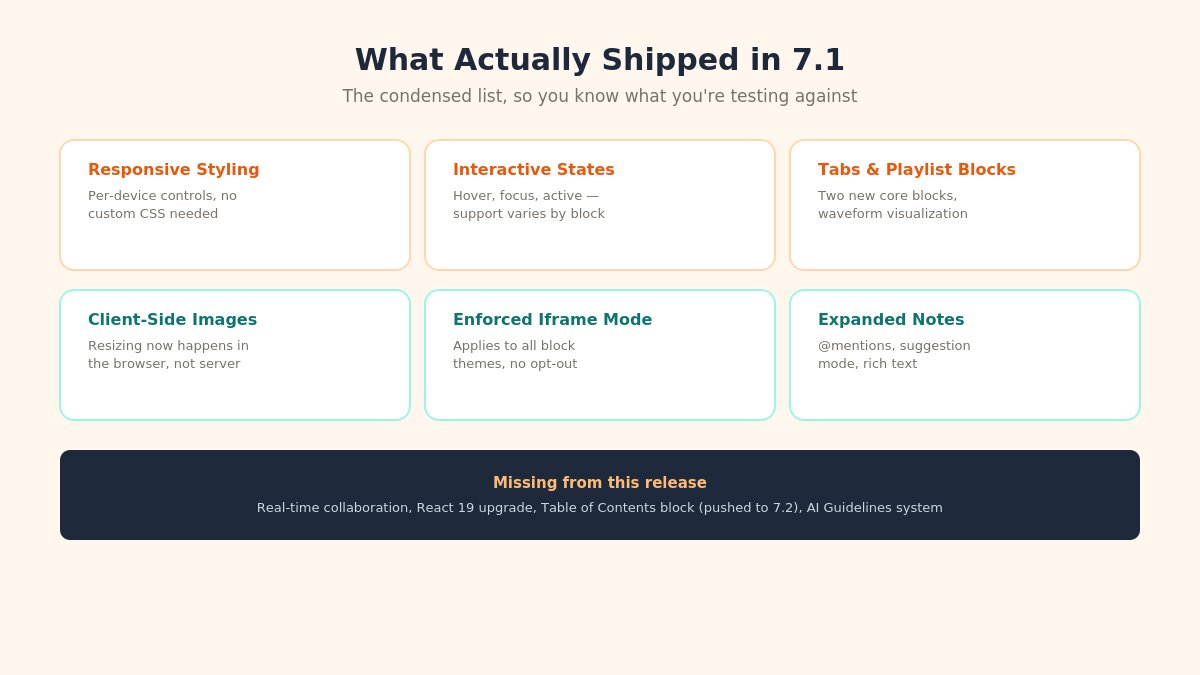
Before getting into testing, here’s the condensed list of what’s genuinely new, so you know what you’re testing against:
Per-device responsive styling in the Site Editor — different styles for mobile, tablet, and desktop without custom CSS.
Interactive state styling — hover, focus, and active states configurable through the interface, block support varies.
Two new core blocks — Tabs and an Audio Playlist block with waveform visualization.
Client-side (browser-side) image processing — resizing and optimization now happen before upload instead of on your server.
Enforced iframe mode for the block editor on all block themes.
Reorganized command palette and a persistent admin bar across editing screens.
The Classic block stays in the inserter — its planned removal was reversed on July 7, 2026, after community pushback.
Notably absent, if you were expecting them: real-time collaboration (still not ready), the React 19 upgrade (delayed again), a Table of Contents block (pushed to WordPress 7.2), and the proposed AI “Guidelines” system (declined for this release).
Test 1: Your Custom Blocks and Editor Extensions
WordPress 7.1 iframe editor testing diagram
This is the highest-priority test, and the one most likely to surface a real problem. On a staging copy of your site:
Open every custom block you or a developer has built, and confirm it still renders and functions correctly inside the editor, not just on the front end.
Test any plugin that adds UI elements directly inside the post editor screen — SEO analysis panels, readability scorers, custom sidebar panels, and content-checking tools are the categories most likely to be affected.
Check any plugin that modifies the editor toolbar or adds custom formatting options.
If you’re running a page builder alongside the block editor (rather than replacing it entirely), confirm the integration between the two still behaves as expected.
If something breaks here, the fix is almost always waiting for a plugin update from the developer rather than something you can resolve yourself — which is exactly why testing on staging first, before your visitors or content team hit the problem in production, matters so much for this specific release.
Test 2: Image Uploads and Your Media Workflow
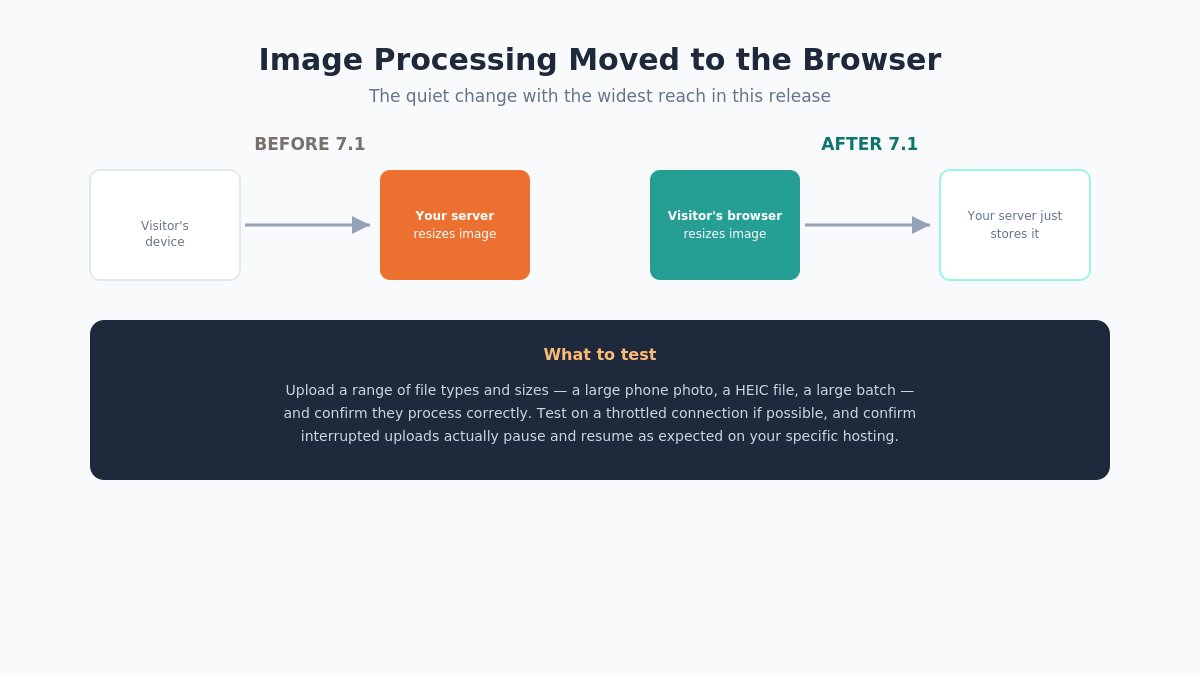
The move to client-side image processing is the “quiet but wide-reaching” change referenced earlier, and it’s worth understanding what actually changed before you test it. In previous WordPress versions, when you uploaded an image, your server did the work of resizing it into the various sizes WordPress needs (thumbnail, medium, large, and so on). In 7.1, a meaningful part of that processing now happens in the visitor’s browser before the file even finishes uploading.
WordPress 7.1 client-side image processing before and after comparison
What to test specifically:
Upload a range of file types and sizes — including a large photo straight from a phone camera, a HEIC file if you support Apple devices, and a very large batch upload — and confirm they all process correctly and appear with the expected image sizes in the Media Library.
Test on a slow or throttled connection if you can simulate one, since processing now depends partly on the visitor’s device and browser rather than purely your server’s resources.
Confirm any custom image-size registrations from your theme or plugins are still being generated correctly — a small number of plugins that hook into the old server-side processing pipeline may need an update to work with the new flow.
Test the interrupted-upload behavior. One of the quieter improvements in this release is that uploads now pause and resume automatically if the connection drops — worth confirming this actually works as expected on your specific hosting setup rather than assuming it does.
Test 3: Your Theme’s Compatibility Status
If you’re running a block theme (most modern themes, including full-site-editing-enabled ones), the enforced iframe applies to you directly. If you’re running a classic theme, WordPress 7.1 includes automated migration assistance to help move toward block-theme compatibility — but “assisted” doesn’t mean “automatic and risk-free.”
Specific checks:
Confirm your theme developer has published compatibility notes for 7.1, if you’re running a premium or third-party theme.
If you’re on a classic theme and considering the migration assistance, run it on staging first and review every template file it touches before applying it to production.
Check your theme’s custom Site Editor templates (headers, footers, custom page templates) still render correctly with the new layout and Styles tab reorganization — some settings that used to live under Layout have moved.
Test 4: Forms, Checkout, and Anything With a Custom Admin Interface
WordPress 7.1 critical site flows testing checklist
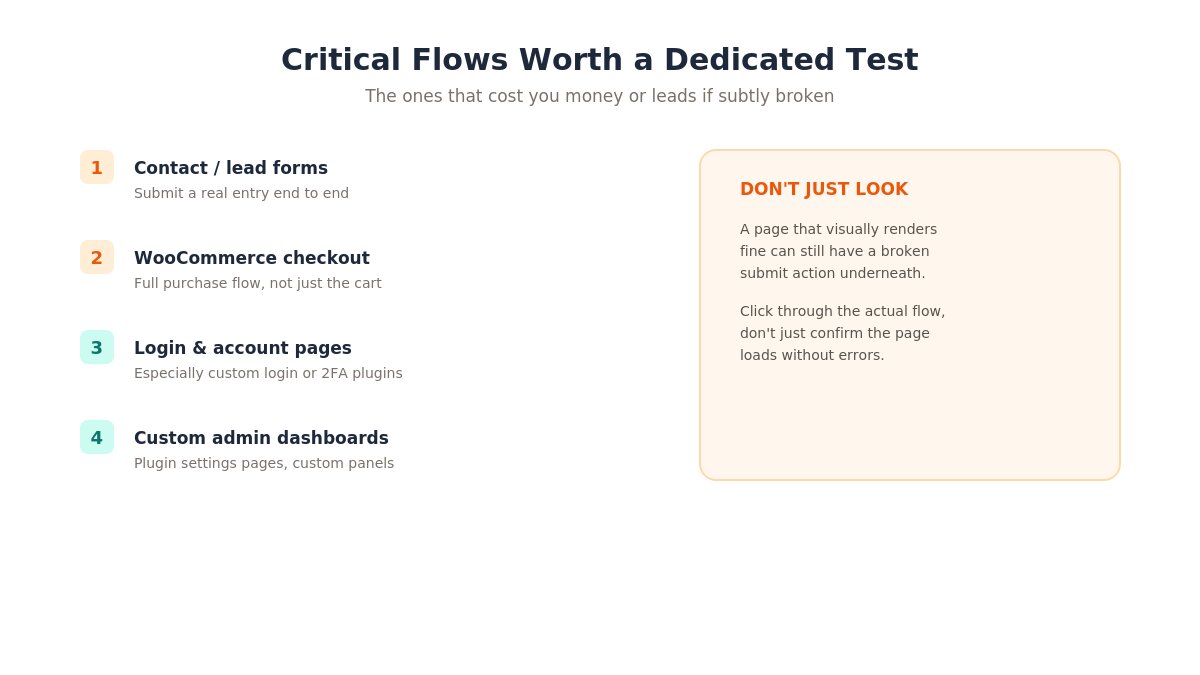
Beyond the editor itself, a handful of front-end and admin flows are worth a dedicated pass, since they’re the ones that actually cost you money or leads if something’s subtly broken:
Contact and lead-generation forms — submit a real test entry end to end, don’t just check that the form displays.
WooCommerce checkout, if you’re running a store — test the full purchase flow, not just the cart page.
Login and account management pages, especially if you’re using a custom login page or two-factor authentication plugin.
Any custom admin dashboard or settings page added by a plugin, since some of these hook into the same admin UI patterns affected by the command palette reorganization.
User-facing publishing workflows if you run a multi-author or membership site — confirm the Notes and collaboration features (if you use them) behave as expected for your specific author roles and permissions.
Test 5: The New Blocks, If You Plan to Use Them
The Tabs block and the Audio Playlist block are new additions, and while they won’t break anything by simply existing, they’re worth a deliberate test pass before you rely on them in real content rather than discovering their limitations mid-edit on a live page.
Tabs block considerations: – Not every block works cleanly nested inside a tab panel yet — test whatever combination you actually plan to use (embeds, galleries, other Tabs blocks) rather than assuming full compatibility. – Check how the Tabs block behaves with your specific theme’s typography and spacing settings, since tab styling inherits from your active theme rather than shipping with strong opinionated defaults of its own. – Confirm keyboard navigation between tabs works correctly if accessibility compliance matters for your site — this is a newly shipped block, and edge cases are more likely in a first release than in a block that’s been in core for years.
Playlist block considerations: – The waveform visualization adds a small amount of front-end processing per track — if you’re planning to embed a long playlist, test actual page load impact rather than assuming it’s negligible. – Confirm your audio file formats and hosting setup (especially if you’re using an external CDN for media) work correctly with the new player rather than falling back silently to a broken state.
Neither of these blocks is something you’re forced to adopt immediately. If you don’t have an immediate use case, it’s entirely reasonable to leave this test for later and focus your update-week attention on the compatibility risks above instead.
Test 6: Admin Navigation and the Command Palette
The reorganized command palette and persistent admin bar are quality-of-life changes rather than breaking changes in the technical sense, but they’re worth a brief test pass anyway, particularly if your team has built any documentation, training material, or onboarding guides around the previous admin navigation. A support ticket that starts with “I can’t find the setting that used to be right here” is a real cost even when nothing is technically broken — a five-minute walkthrough with your content team after updating saves that friction.
If you manage client sites, this is also worth a proactive heads-up to clients before they update, or before you update on their behalf — “everything still works, a few things moved” is a much better message to deliver in advance than to receive as a confused support request afterward.
What Changed Under the Hood, for Developers
If you or someone on your team maintains custom plugins or theme code, a few technical specifics from the WordPress 7.1 Field Guide are worth flagging directly, beyond the user-facing testing checklist above:
Two new block supports and one Global Styles property landed in this release, including a gradient-related property that theme authors have reportedly been working around manually for some time — worth reviewing if your custom theme includes gradient handling.
The SVG Icon API received updates as part of this release’s Design System work, relevant if you maintain custom block icons.
DataViews and View Config continue to mature as the underlying system behind newer admin list views (Site Editor navigation, for example) — if you’ve built custom admin screens using older list table patterns, it’s worth understanding whether DataViews is the direction your customizations should eventually move toward.
Connectors gained username and app-password authentication, relevant if you’re building or maintaining integrations that rely on WordPress’s newer AI Client / Connectors infrastructure introduced in WordPress 7.0.
None of these are breaking changes in the sense of “your site goes down.” They’re the kind of underlying shifts that matter if you’re actively maintaining custom code, and largely invisible if you’re not.
What About Security?
It’s worth knowing the security context heading into this update, since it explains part of why staying current matters here specifically, even while testing carefully. WordPress 7.0.2, released July 17, 2026, addressed one critical and one high-severity vulnerability — serious enough that WordPress.org enabled forced automatic updates for affected sites. WordPress 7.0.3 followed on August 6 with roughly a dozen additional fixes. That pattern — meaningful security work continuing right up to the 7.1 release — is a reasonable argument for not delaying this update indefinitely once you’ve confirmed compatibility.
This is also a good moment to confirm your site is actually receiving these updates in the first place. Sites on older, unsupported PHP versions, or with automatic background updates disabled, may have missed the forced 7.0.2 security patch entirely — worth checking your current version against the changelog before assuming you’re already covered.
Multisite and Agency Considerations
If you manage a WordPress multisite network or a portfolio of client sites, the testing burden here multiplies in a specific way worth planning for rather than discovering mid-rollout. Different sites on the same network may be running different themes, different plugin combinations, and different levels of custom code — which means a compatibility pass on one representative site doesn’t necessarily clear every site on the network.
A practical approach for multisite or agency environments: identify the two or three sites in your portfolio with the heaviest custom code or the most unusual plugin combinations, and treat those as your canary tests. If those come through clean, the more standard, lightly-customized sites on the same stack are very likely to follow without issue. If a canary site surfaces a problem, you’ve caught it before it reached every site on the network rather than after.
A Realistic Update Timeline
Rather than updating the moment 7.1 is available, or waiting indefinitely out of caution, a reasonable middle path looks like this:
Give plugin developers one to two weeks to ship compatibility updates for anything you rely on heavily — the most-used plugins typically respond fastest, and checking the plugin’s own changelog or support forum is a faster signal than waiting to find out the hard way.
Clone your production site to staging and run the tests above before touching anything live.
Update on staging first, and don’t just check that the site “looks fine” — actually click through the specific flows listed above, since the failure modes here tend to be functional rather than visual.
Back up production before updating, and actually test that the backup restores correctly. This is the step people skip most often, and it’s the one that matters most if something does go wrong.
Update during low-traffic hours even after staging testing passes clean, in case something surfaces only under real production conditions with real visitor traffic and real edge-case content.
Watch your error logs for the first 24-48 hours after the production update, rather than assuming a clean initial page load means everything downstream is fine too.
Old Behavior vs. New Behavior, Side by Side
Before WordPress 7.1
After WordPress 7.1
Image processing
Happens on your server after upload
Happens in the browser before upload completes
Block editor rendering
Iframe mode optional/gradual
Enforced for all block themes
Hover/focus styling
Required custom CSS or a plugin
Built into the block editor interface
Responsive styling
Largely CSS media queries
Native per-device controls in Site Editor
Classic block
Scheduled for removal from inserter
Removal reversed, stays available
Interrupted uploads
Typically failed and had to restart
Pause and automatically resume
If Something Breaks After Updating
Even with careful staging tests, production environments occasionally surface an issue staging didn’t — different traffic patterns, different cached states, or a plugin combination that only exists on the live site. Having a rollback plan ready before you update, not after something breaks, makes this a non-event instead of a scramble:
Know your rollback method before you need it — whether that’s your host’s one-click restore, a backup plugin’s restore function, or a manual database and file restore process.
Downgrade the specific plugin, not necessarily WordPress core, if you can isolate the problem to one plugin — this is usually faster than a full core rollback and less disruptive to content published since the update.
Document what broke and how you fixed it, even briefly — the next point release will likely touch similar territory, and a two-line internal note saves real time later.
Your Update Checklist, In Order
If you only do six things before updating to WordPress 7.1, do these, in this order:
Back up production, and verify the backup actually restores.
Clone to staging and update staging first, never production first.
Test every custom block and editor-integrated plugin inside the actual post editor, not just the front end.
Run a full image upload test, including at least one large file and one HEIC file if relevant to your audience.
Complete one full end-to-end test of your site’s most important conversion flow — a form submission, a checkout, or an account signup — before updating production.
Watch error logs closely for the first two days after the production update.
None of this means WordPress 7.1 is a risky release in the way a major security patch under active exploitation would be. It means the specific combination of enforced iframe mode and a changed media pipeline creates more surface area for a plugin-specific problem than a typical point release, and a short, structured testing pass catches the overwhelming majority of issues before your visitors ever see them.
Running a theme that’s already compatible with the latest WordPress releases takes one variable out of every future update. Browse our WordPress themes to see what we keep current.
We're a Digital Team from EngineTemplate with 5 content experts. Our team has 5 years exp in open source Joomla and WordPress, we make daily blogs and build useful resources for everyone who is having issues with open source while using it.
 ET Digital Team