You want every call-to-action button on your site to share one look, or every pricing box to have the same soft background and border, but right now you rebuild that design by hand on every page. Copying settings between blocks works until someone forgets one value and the site drifts. Custom block styles fix this: you register a named style once, and it appears in the block sidebar as a one-click option for everyone who edits the site.
This tutorial shows the three ways to add custom block styles in WordPress: the PHP function register_block_style(), a theme.json partial file in your theme’s /styles folder, and the JavaScript API for the editor. It also covers removing core styles you do not want your editors to use, and the mistakes that make a new style refuse to show up.
What a block style actually is
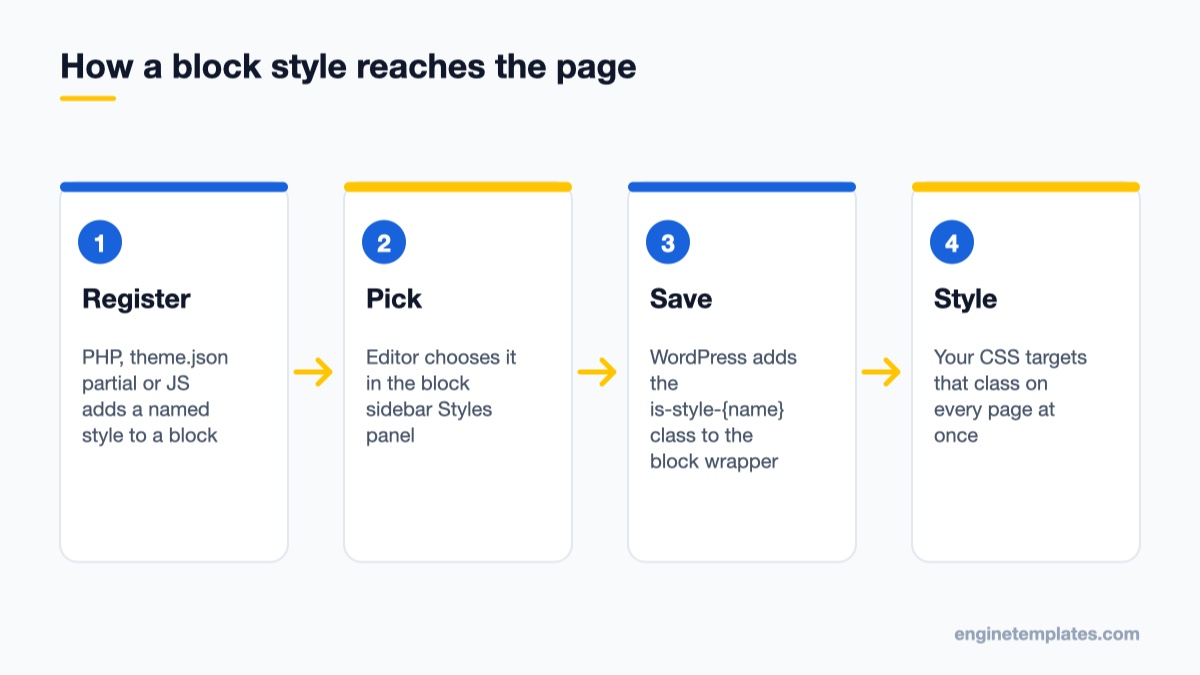
A block style (the code calls it a block style variation) is a named alternative look for a block. WordPress ships a few already: the Button block has Fill and Outline, the Image block has Default and Rounded, and the Separator block has Default, Wide Line and Dots. When an editor picks one in the Styles panel of the block sidebar, WordPress adds a class to the block wrapper in the form is-style-{name}. Your CSS targets that class, so the design lives in one place and the content stays clean.
The editor saves only a class name; your CSS does the styling everywhere.
That is the main difference between a block style and a one-off design. The editor does not save colours, borders and padding into each block; it saves only the class name. Change the CSS later and every block using that style updates across the site at once. Compare that with a reusable pattern, which copies its markup into each page, or with per-block settings, which are stored in every block’s attributes.
Block styles work in block themes and in classic themes that use the block editor, so you can use this technique whether your site runs a full Site Editor theme or an older theme with the editor for posts and pages.
Where to put the code
Never add these snippets to your parent theme’s functions.php. The next theme update replaces that file and your styles disappear. Use one of these instead:
A child theme – best when the styles are part of your site’s design and you already run a child theme.
A small site plugin – best when the styles must survive a theme switch. A single PHP file in wp-content/plugins/my-block-styles/my-block-styles.php with a plugin header is enough.
Your own theme – if you build the theme yourself, register the styles in its functions.php or in the /styles folder covered below.
If you have disabled the built-in file editor for security (a good idea, see how to disable the theme and plugin editor), upload the file over SFTP or through your host’s file manager. Make a backup or work on a staging copy first, because a PHP typo in functions.php can take the site down until you fix the file.
Method 1: Register a block style with PHP
register_block_style() has been in WordPress since version 5.3. It takes the block name and an array of properties. Only name and label are required; the function reference lists the rest. To give the style a look you add one of three properties:
inline_style – a CSS string that WordPress prints in the page head.
style_handle – the handle of a stylesheet you registered with wp_register_style(), enqueued when the style is needed.
style_data – a theme.json-style array (WordPress 6.6 and later) that WordPress turns into CSS. Styles defined this way can also be edited in the Global Styles interface.
Step 1: Add a simple style with inline CSS
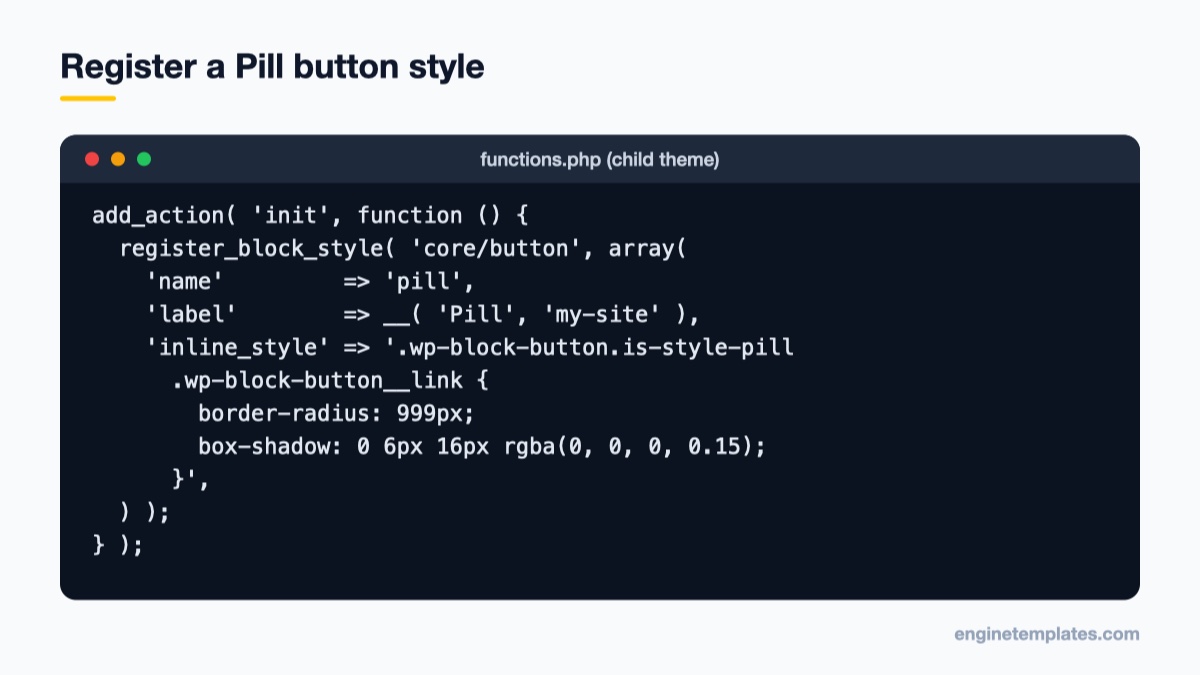
This example adds a “Pill” style to the Button block: fully rounded corners and a soft shadow. Register it on the init hook:
register_block_style() on the init hook adds a Pill option to the Button block.
Save the file and open any page in the editor. Select a Button block, open the block sidebar, and a Styles panel lists Fill, Outline and now Pill. Choosing it adds is-style-pill to the wp-block-button wrapper, and the CSS above styles the link inside it. Notice the selector: on the Button block the class sits on the outer wrapper, while the visible button is the inner .wp-block-button__link element. Write your CSS for the element you actually want to change.
Step 2: Load longer CSS from a stylesheet
Inline CSS gets messy past a few lines. For anything bigger, put the CSS in a file in your child theme (for example assets/css/block-styles.css), register it, and pass its handle:
Inside block-styles.css, target .wp-block-group.is-style-card with your padding, border and background. Using get_stylesheet_directory_uri() points to the child theme; in a parent theme you would use get_template_directory_uri(). Passing the theme version as the last argument changes the file URL when you bump the version, so browsers fetch the new CSS instead of a cached copy.
Step 3: Use style_data so editors can adjust it
Since WordPress 6.6, the first argument can be an array of block names, and style_data lets you describe the look with the same keys you use in theme.json. This registers one “Highlight” style for both Group and Columns blocks:
Because the values come from theme.json-style data, they can use the same colour and spacing logic as the rest of your theme. If you are new to that format, our guide to customizing colors and fonts with theme.json explains the structure.
Method 2: Add a block style with a theme.json partial
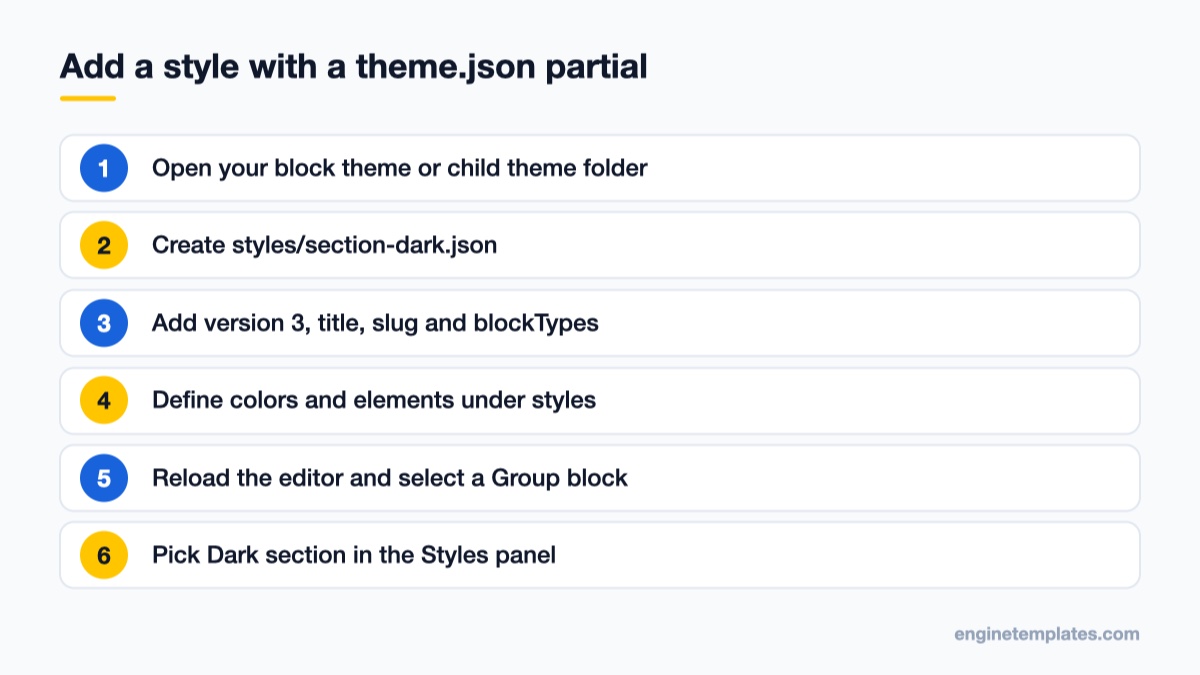
Block themes have a second option that needs no PHP at all. The WordPress 6.6 Section Styles dev note introduced theme.json partial files: JSON files in the theme’s /styles folder that contain a blockTypes key are registered automatically as block style variations for those blocks. Theme style variations (whole-site colour schemes) live in that same folder; the blockTypes key is what tells WordPress the file is a block style instead.
A JSON file with a blockTypes key in /styles becomes a block style automatically.
Create styles/section-dark.json in your theme (or child theme):
The title is the label editors see, and the slug is the stable identifier WordPress uses for the class name, so keep it lowercase with hyphens and do not change it once pages use it. Reload the editor, select a Group block, and Dark section appears in the Styles panel. Everything inside the group, including headings and links, picks up the colours you defined, which is why this feature is aimed at whole page sections rather than single buttons.
The advantage of a partial over a PHP snippet is that a designer can work on it without touching PHP, and it ships with the theme like any other theme.json data. The downside is that it only fits block themes; on a classic theme stay with register_block_style().
Method 3: Register or remove styles with JavaScript
The editor also has a JavaScript API, documented in the Block Styles reference. You rarely need it to add styles, since PHP does the job and also loads the front-end CSS. Where JavaScript is essential is removing styles: unregister_block_style() in PHP only removes styles that were registered with PHP. Styles defined by core blocks, and styles another plugin added in JavaScript, must be removed in JavaScript.
Remove a core style editors should not use
Say your design system has no place for the Separator block’s Dots style. Enqueue a script for the editor only, with the dependencies the handbook recommends:
wp.domReady( function () {
    wp.blocks.unregisterBlockStyle( 'core/separator', 'dots' );
} );
Wrapping the call in wp.domReady() matters. Registration and removal can race, and the handbook’s advice is that your unregister code should run last; without domReady the core style may be registered after your removal runs, and it stays in the panel. Removing a style hides the option for new content only. Blocks that already use it keep their is-style-dots class, so check existing pages before you remove a style people rely on.
Add a style from JavaScript
If you are already shipping an editor script, adding a style there is a single call:
This only adds the option to the editor. You still need to load CSS for .wp-block-quote.is-style-accent-border on the front end, for example in your child theme’s stylesheet, which is why the PHP method is usually simpler.
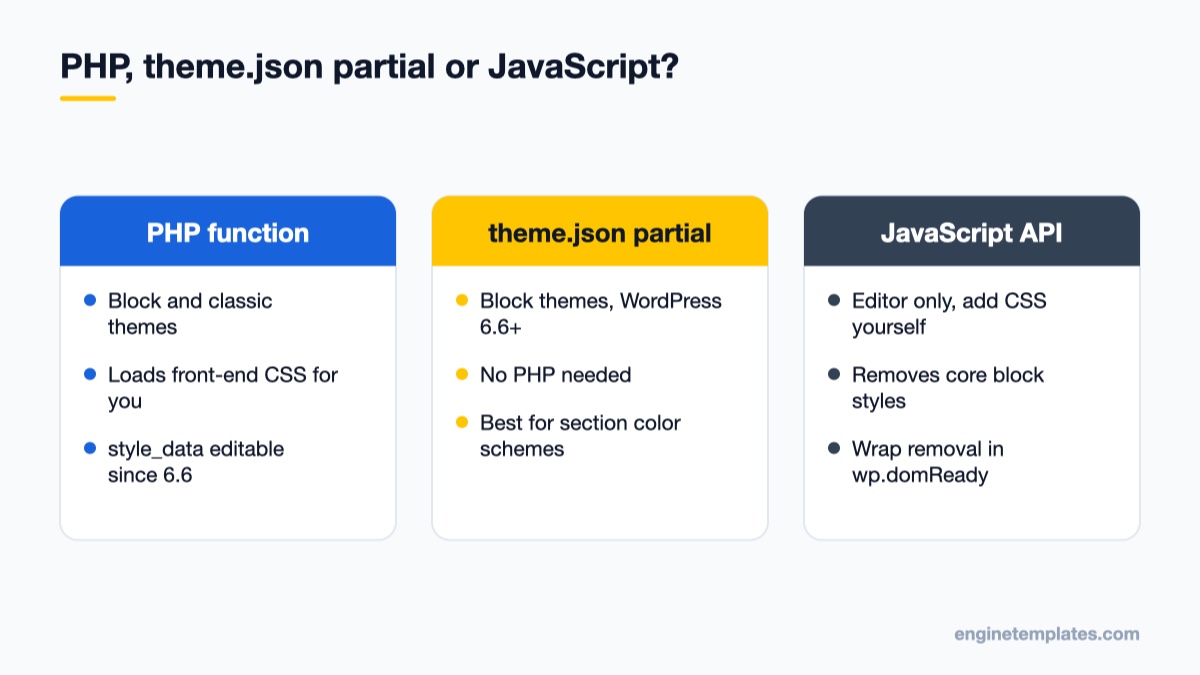
Choosing the right method
Pick the method that matches your theme type and who maintains the styles.
Method
Theme type
Front-end CSS
Editable in Global Styles
register_block_style() with inline_style or style_handle
Block and classic
Loaded for you
No
register_block_style() with style_data
Block and classic with the editor (6.6+)
Generated from the data
Yes
theme.json partial in /styles
Block themes (6.6+)
Generated from the data
Yes
wp.blocks.registerBlockStyle()
Any theme using the editor
You add it yourself
No
A practical rule: for small, precise tweaks such as a button shape or an image frame, use PHP with a stylesheet. For section-level colour schemes in a block theme, use a theme.json partial. Use JavaScript only for removing styles or when you already maintain an editor script.
Common mistakes and how to fix them
The style shows in the editor but not on the live site. You registered it in JavaScript without front-end CSS, or a page cache is serving the old HTML. Clear every layer (plugin cache, server cache, CDN) as described in WordPress changes not showing.
The style does nothing. Your selector targets the wrong element. Inspect the block in the browser: the is-style- class is on the wrapper, and blocks like Button and Image put the visible element inside it.
The class is written twice. Use the plain name in name (pill, not is-style-pill); WordPress adds the prefix itself.
Theme CSS wins. Some themes style buttons with more specific selectors. Match their specificity (for example .wp-block-button.is-style-pill .wp-block-button__link) instead of reaching for !important.
The JSON partial is ignored. Check that the file is valid JSON, sits directly in the theme’s /styles folder, and includes blockTypes. Without that key WordPress treats it as a theme style variation.
White screen after saving functions.php. A missing bracket or semicolon. Restore the file over SFTP and check the error message using our guide to reading PHP error logs.
Themes that make a good starting point
Block styles are most useful on content-heavy sites where many people publish. ET Journey, a magazine WordPress theme, is a good base for adding consistent quote, pull-out and call-to-action styles to news articles. For a niche publication, ET Nutrition gives you a free blog-style layout where a “Card” group style works well for recipe and tip boxes. You can browse more options in our free WordPress themes collection.
Wrap-up: your next step
Start small. Pick the one design element your editors rebuild most often, usually a button or a highlighted box, and register it as a block style in your child theme or a site plugin with register_block_style() and a stylesheet. Test it in the editor and on the front end, then clear your caches. Once that works, move section colour schemes into theme.json partials if you run a block theme, and remove any core styles that do not fit your design. Every page your team builds after that stays consistent without anyone copying settings by hand.
We're a Digital Team from EngineTemplate with 5 content experts. Our team has 5 years exp in open source Joomla and WordPress, we make daily blogs and build useful resources for everyone who is having issues with open source while using it.
 ET Digital Team