At some point running a WordPress or Joomla site, you’ll hit a moment where an image won’t upload, a plugin install fails with a vague error, or your host’s support team tells you to “check your file permissions” — followed by a number like 644 or 755 that means nothing to you. This happens to nearly everyone eventually, and the underlying concept, once actually explained, takes about ten minutes to genuinely understand rather than just memorize.
It’s also one of those topics that gets explained inconsistently across the web — one guide says 755, another says 750, a forum post from years ago suggests 777 as a quick fix, and none of them explain why the numbers differ or what’s actually happening underneath. Part of the confusion is legitimate: server configurations do vary, and what’s correct on one host isn’t always identical on another. This guide covers both the universal logic that applies everywhere and the specific points where your actual answer depends on your hosting environment.
Here’s what those numbers actually mean, why they exist, and how to fix permission problems without accidentally creating a security hole in the process.
A Quick Note on Server Variation
Why file permission recommendations vary slightly by hosting server
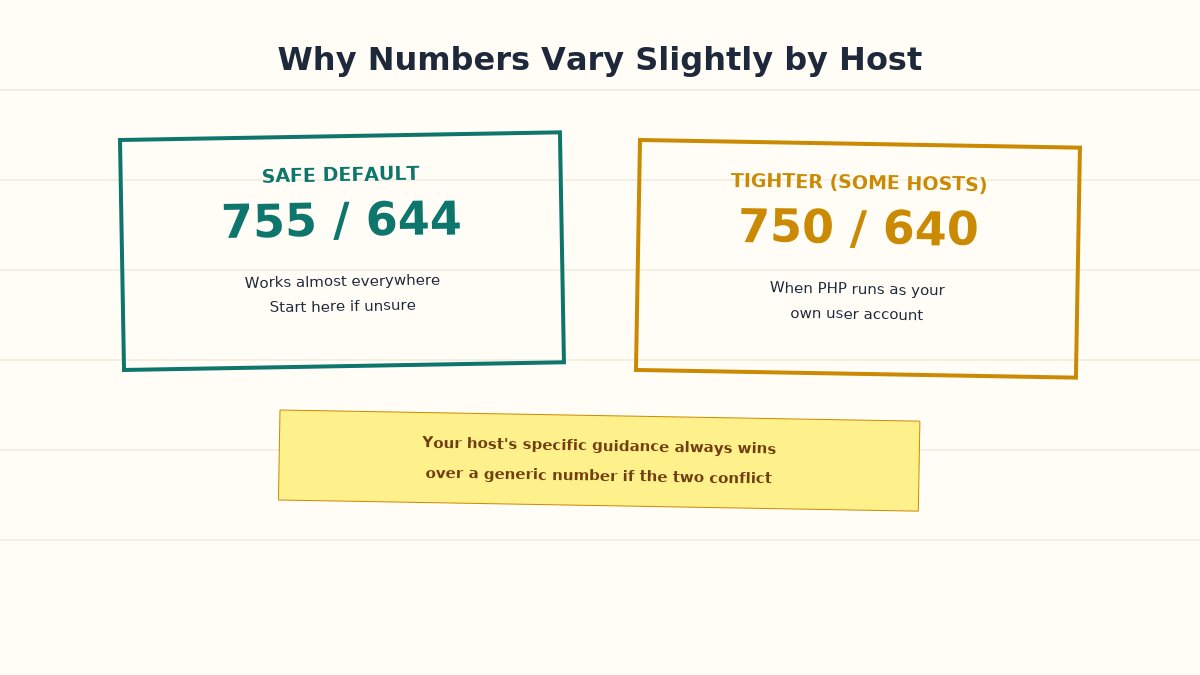
Before getting into specifics, it’s worth explaining why you’ll sometimes see slightly different numbers recommended in different places, since this is a legitimate source of confusion rather than different sources simply disagreeing carelessly. Some hosting environments run PHP in a way where the web server process and your file owner account are effectively the same user (common on modern managed hosting), which allows for slightly tighter permissions than a setup where PHP runs as a genuinely separate user from your account. On these tighter-permission setups, folders at 750 and files at 640 are sometimes correct and more secure than the more commonly cited 755/644, precisely because the “group” category can be restricted further without breaking anything.
The practical takeaway: 755/644 is the safe, broadly correct default that works almost everywhere, and it’s the right starting point if you don’t know your specific server’s configuration. If your host’s documentation or support team gives you a different specific number for your setup, that’s very likely a legitimate tightening for your specific environment, not a contradiction of the general principle — follow your host’s specific guidance over a generic guide’s when the two genuinely conflict.
What a File Permission Actually Controls
File permission owner group public explained
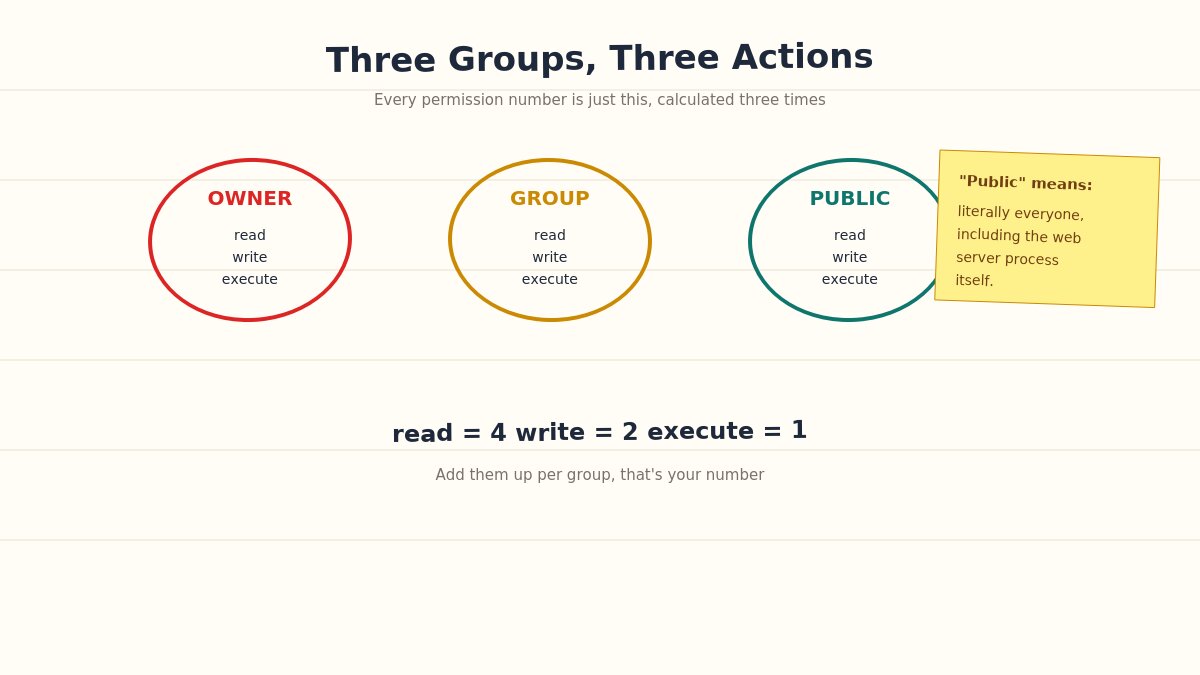
Every file and folder on your server has three separate sets of permissions, controlling three different categories of who can interact with it:
Owner — usually your hosting account itself, or the specific user your files were created under.
Group — a broader set of users your hosting server has grouped together, often other processes or accounts sharing server resources.
Public (sometimes called “world” or “other”) — literally everyone else, including the web server process itself when it needs to read or write a file on behalf of a visitor or an admin action.
For each of these three groups, there are three possible actions: read (view the file’s contents), write (modify or delete it), and execute (run it as a program, relevant mainly for scripts and folders you need to be able to open). A permission setting is simply a compact way of specifying which of these three actions each of the three groups is allowed to do.
Decoding the Numbers
How chmod permission numbers are calculated
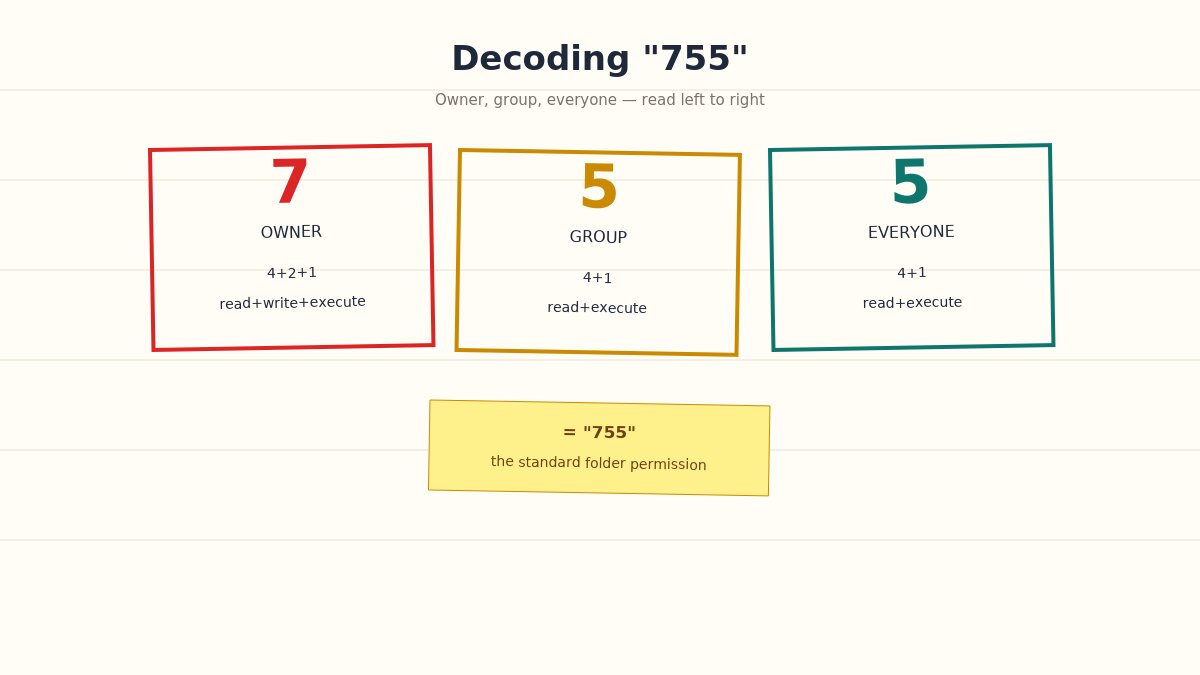
This is the part that looks like arbitrary math until you see the pattern. Each permission (read, write, execute) has a fixed numeric value: read is worth 4, write is worth 2, and execute is worth 1. To get the number for one group, you add up the values for whichever permissions that group has.
A three-digit permission number is just this calculation done three times in a row — once for the owner, once for the group, once for everyone else. So 755 means: owner gets 7 (everything), group gets 5 (read and execute), everyone else gets 5 (read and execute). 644 means: owner gets 6 (read and write), group gets 4 (read only), everyone else gets 4 (read only).
Once you can read a three-digit permission number as “owner, group, everyone” rather than a meaningless code, the rest of this becomes considerably easier to reason about instead of memorize.
The Standard Recommendations for WordPress
Standard WordPress file and folder permission recommendations
WordPress’s own hosting recommendations, which most managed WordPress hosts configure by default, follow a consistent pattern:
Folders: 755 — the owner can do anything, while WordPress’s web server process and other legitimate processes can read and enter the folder, but can’t arbitrarily modify its structure.
Files: 644 — the owner can read and edit, everyone else can only read. This is correct for the vast majority of WordPress files, including theme and plugin files.
wp-config.php: 440 or 600 — this file contains your database credentials and security keys, so it deserves tighter restriction than standard files. 440 restricts it to owner and group read-only with no write access at all; 600 restricts it to owner read/write only, with no access for anyone else. Which one is correct depends on your specific server configuration — check with your host if you’re not sure which your setup expects.
If you’re troubleshooting an upload or plugin-install failure specifically, the wp-content/uploads folder and its subfolders are the most common culprit — confirm this folder tree specifically follows the 755 folder standard, since a misconfigured uploads folder is the single most common permission-related support request WordPress hosts receive.
The Standard Recommendations for Joomla
Standard Joomla file and folder permission recommendations
Joomla follows the same underlying logic with its own specific recommendations:
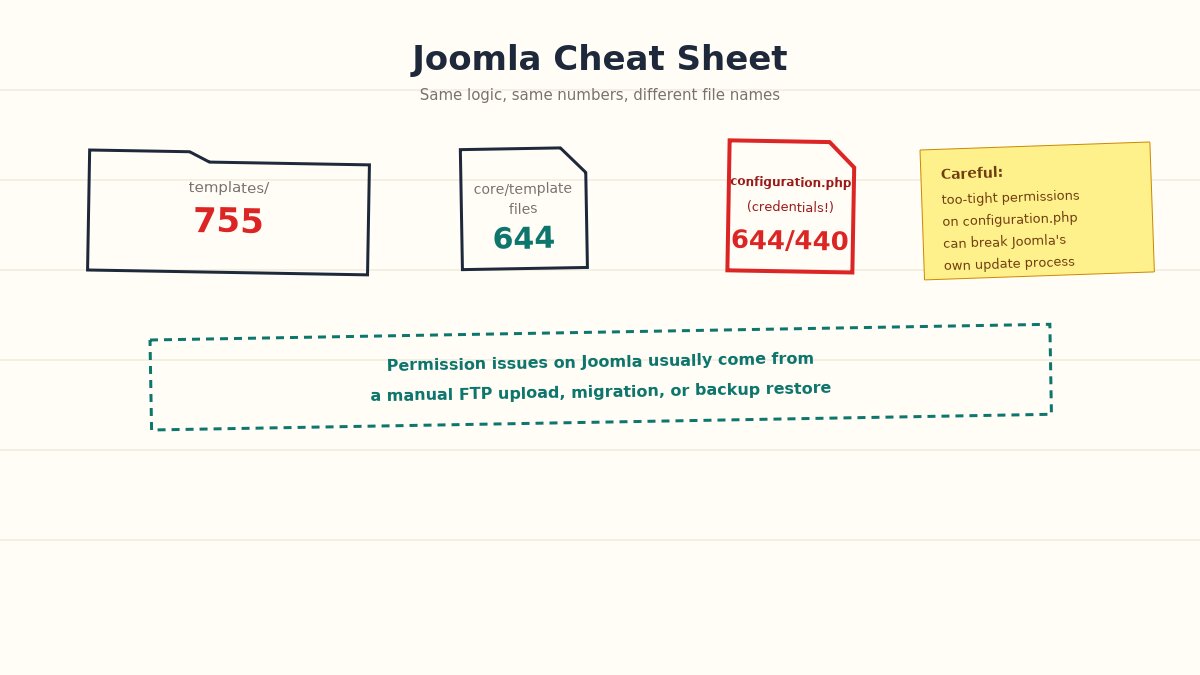
Folders: 755 — same reasoning as WordPress; the web server needs to read and enter folders without being able to arbitrarily restructure them.
Files: 644 — same as WordPress, appropriate for the vast majority of Joomla’s core, template, and extension files.
configuration.php: 644, sometimes tightened to 440 — Joomla’s equivalent of wp-config.php, containing your database credentials. Some security-conscious hosting setups tighten this further once initial setup and updates are complete, though be aware that overly restrictive permissions here can occasionally interfere with Joomla’s own update process, which needs to write to this file during certain operations.
Joomla’s own installation and update processes are generally good about setting reasonable default permissions during setup — permission problems on a Joomla site are more commonly introduced later, by a manual FTP upload, a migration between hosts, or a restore from a backup that didn’t preserve the original permission structure.
Why Permissions Get Scrambled in the First Place
Understanding why permission problems happen in the first place makes them easier to prevent, not just fix after the fact:
Migrating between hosts. Different hosting environments sometimes apply different default permissions during a file transfer, particularly with certain migration plugins or manual FTP transfers that don’t preserve the original permission structure faithfully.
Restoring from a backup. A backup taken on one server and restored on another can bring permission settings that made sense on the original server but don’t match the new one’s configuration or user/group structure.
Manual FTP uploads. Many FTP clients default to a specific permission setting for newly uploaded files that may not match what WordPress or Joomla actually expects, particularly if the client’s default was never explicitly configured. Some FTP clients even apply a blanket default to every upload regardless of whether it’s a file or a folder, which is exactly backwards from what you actually want.
A previous “quick fix” using 777. If a permission error was resolved by setting something to 777 rather than properly diagnosing it, that overly permissive setting often sits unnoticed until a security scan or a host’s automated review flags it — sometimes months or years later, long after whoever set it has forgotten it was ever changed.
Server-level changes outside your control. Occasionally a hosting provider’s own infrastructure update or migration changes default permission behavior across accounts, which is worth asking about directly if permissions that were previously correct suddenly aren’t, with no changes made on your end.
Knowing which of these applies to your specific situation helps you fix the actual root cause rather than repeatedly correcting the same permission issue every time it recurs. A site that keeps needing the same folder’s permissions fixed every few months almost always has one of these root causes still active somewhere — a migration script that runs periodically, an FTP client with a bad default still in use, or a caching or backup tool that resets permissions as a side effect of its normal operation.
A Worked Example: Diagnosing a Real Upload Failure
Worked example of diagnosing a WordPress upload permission failure
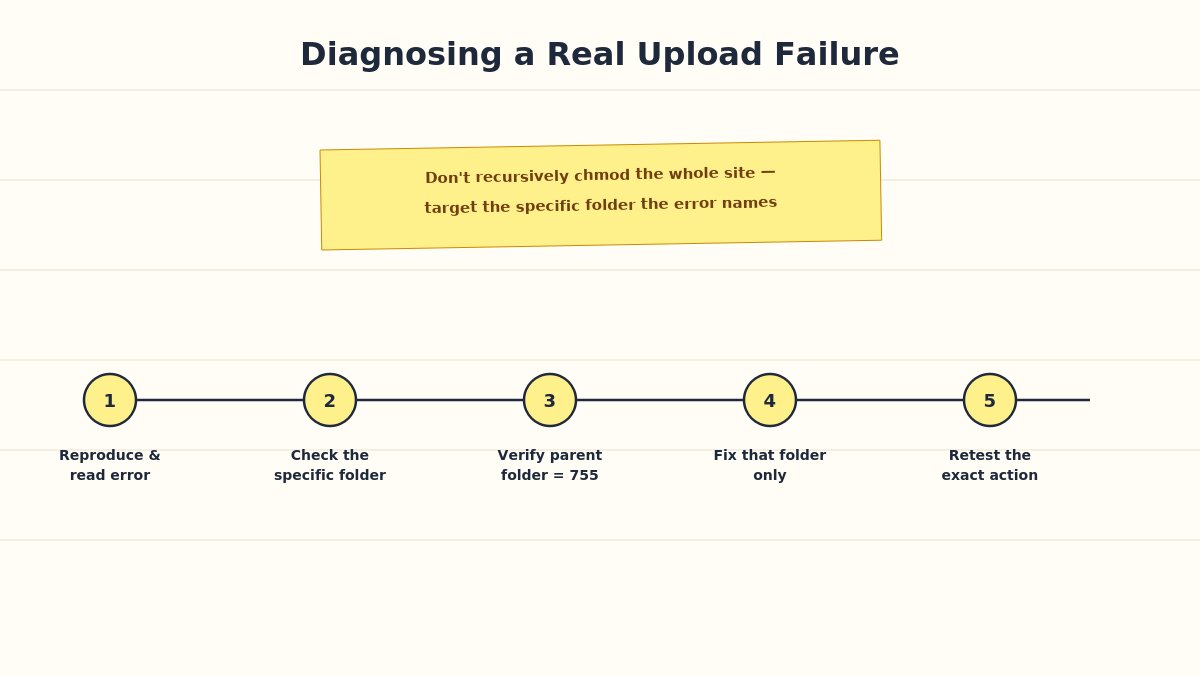
Rather than treating this abstractly, here’s how an actual troubleshooting session should proceed when a media upload fails with a vague error:
Reproduce the error and note the exact wording. “Unable to create directory” points toward a folder permission issue specifically; “the uploaded file could not be moved” points toward the destination folder rather than the upload mechanism itself.
Check the specific folder the error references. For WordPress, this is almost always somewhere inside wp-content/uploads/, often a year/month subfolder that gets created automatically at upload time — if WordPress can’t create that subfolder due to a parent folder permission issue, uploads fail at exactly this point.
Verify the parent folder’s permission is 755, not something more restrictive. A parent folder set to 644 (no execute permission) prevents the system from creating new subfolders inside it, even if the parent folder itself appears “readable.”
Correct the specific folder, not the entire site. Resist the urge to recursively chmod everything from the site root — target the specific folder tree the error is actually about, minimizing the chance of accidentally changing something that was already correctly configured elsewhere.
Retest the exact action that failed, not just a general “does the site look fine” check — attempt the same upload again specifically, since a permission fix elsewhere on the site doesn’t guarantee the original specific failure point is actually resolved.
If it’s still failing after a correct permission fix, move to the “not actually a permissions problem” causes covered below rather than continuing to adjust numbers that were already right.
This same general sequence — reproduce, identify the specific folder or file involved, verify against the standard, correct narrowly, retest specifically — applies just as well to a Joomla extension install failure or any other permission-flavored error, not just WordPress media uploads.
Why 777 Is Almost Always the Wrong Answer
Why chmod 777 is a security risk explanation
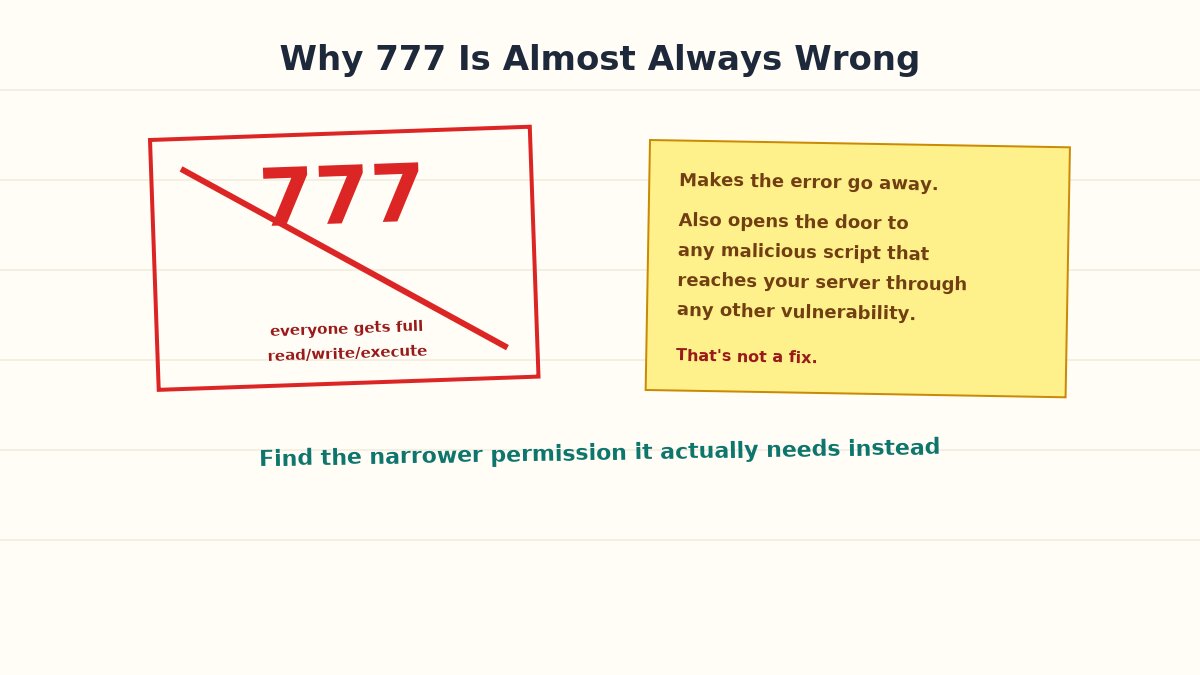
If you’ve searched for a permission error and found a quick forum answer, there’s a good chance it suggested setting the problematic file or folder to 777 — read, write, and execute for absolutely everyone, no restrictions at all. This will, in fact, make almost any permission error disappear immediately. It will also mean that literally anyone who can reach that file or folder — including malicious scripts that get onto your server through any other vulnerability — can now write to it freely.
777 isn’t a fix, it’s a workaround that trades a visible inconvenience for an invisible, much more serious risk. The correct fix is almost always to identify the specific narrower permission the file or folder actually needs — usually 755 for a folder or 644 for a file — rather than opening everything to everyone because it’s the fastest way to make an error message go away. If setting the correct, narrower permission doesn’t resolve the issue, the actual problem is very likely something else entirely — an incorrect file owner, a server configuration issue, or a genuinely different error being misattributed to permissions — and deserves proper diagnosis rather than a 777 workaround that introduces a real security gap while potentially not even fixing the underlying cause.
How to Actually Check and Change Permissions
Methods to check and change file permissions
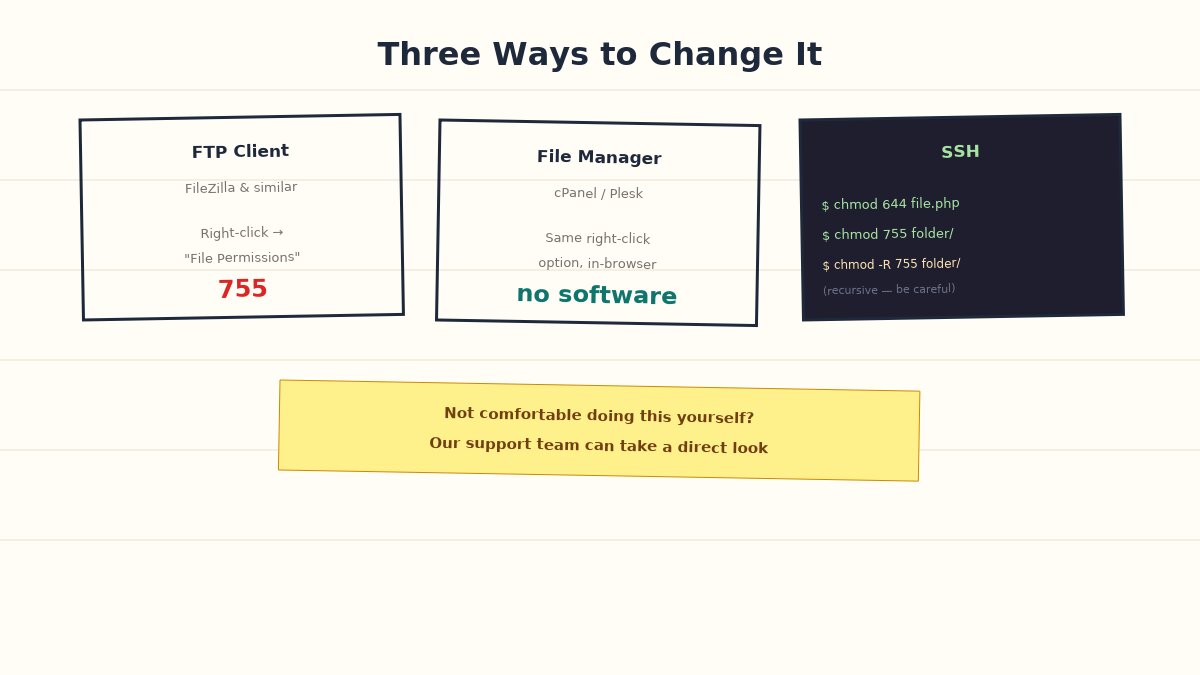
Three common methods, depending on your comfort level and what access you have:
Using an FTP client (FileZilla and similar). Connect to your site, right-click any file or folder, and look for “File Permissions” or “File Attributes.” Most FTP clients show a simple numeric field you can edit directly, along with checkboxes for read/write/execute per group if you prefer working that way instead of typing the number directly.
Using your host’s File Manager (cPanel, Plesk, or similar). Most hosting control panels include a browser-based file manager with the same right-click permission-editing option as an FTP client, without needing separate software installed.
Using SSH, if your host provides it. The command chmod 644 filename or chmod 755 foldername sets a specific file or folder directly. For recursively setting an entire folder tree at once — useful after a migration where permissions got scrambled — chmod -R 755 foldername applies the setting to every file and subfolder inside it, though be careful with recursive commands on a folder containing files that need different permissions than its subfolders, like wp-config.php sitting inside your WordPress root.
If you’re not comfortable with any of these directly, this is also exactly the kind of task our custom work team can help resolve quickly, particularly after a migration or restore where permissions across an entire site need review rather than a single file.
Recognizing Permission Errors When They’re Disguised as Something Else
Permission problems don’t always announce themselves clearly. A few error messages that are frequently permission-related, even though the wording doesn’t always say so directly:
“Unable to create directory” or “Could not create directory” during a plugin or theme install — almost always a folder permission issue in wp-content or its subfolders.
“The uploaded file could not be moved” when uploading media — typically the uploads folder or one of its date-based subfolders has incorrect permissions.
A blank white screen with no error message at all, in some server configurations, can be a permission issue preventing a critical file from being read — check your host’s error logs specifically, since the front-end display often won’t surface a permission failure as clear text.
“Installation failed: could not copy files” during a Joomla extension install — the same underlying issue as the WordPress directory-creation error above, just phrased differently.
Recognizing that an oddly-worded error might actually be a permissions issue in disguise saves considerable time compared to troubleshooting the literal wording of the error message without considering the more likely underlying cause.
When It’s Not Actually a Permissions Problem
Setting correct permissions doesn’t fix every upload or install failure, and it’s worth ruling out a few other common causes before assuming permissions are the culprit:
PHP upload size limits configured too low on the server can produce an error that looks similar to a permission failure but has nothing to do with file permissions at all.
Disk space limits on your hosting plan can prevent new files from being created regardless of how correctly permissions are configured.
File ownership mismatches — a subtly different problem from permissions, where the file’s owner itself is set incorrectly rather than the permission level being wrong, common after restoring a backup taken from a different server.
A security plugin or server-level firewall rule blocking the specific action, which can produce an error that looks identical to a permissions failure from the front end.
If you’ve confirmed permissions are correctly set using the standards above and the error persists, these are the next places to look rather than continuing to adjust permission numbers that were already correct.
The Permission Settings Worth Memorizing
If you only take three numbers away from this, make them these: 755 for folders, 644 for files, and never 777 as a fix. That covers the overwhelming majority of WordPress and Joomla files on a standard hosting setup, and gives you a genuine baseline to compare against whenever a host, a plugin, or an error message references a permission problem you’re trying to actually understand rather than guess at.
It’s worth keeping this reference point in mind not just for the next time something breaks, but as a general habit whenever you’re handling files directly — migrating a site, restoring a backup, or manually uploading through FTP. A quick permission check immediately after any of these actions, before you’ve moved on to something else, catches a scrambled permission structure while it’s still fresh in your mind and easy to trace back to its cause, rather than weeks later when a plugin update mysteriously fails and you’re troubleshooting from scratch with no memory of what changed.
Setting up a new site and want the permission structure handled correctly from the start? Our Quickstart Installation Service configures this as part of every setup, and our documentation covers platform-specific notes if you run into anything unusual. If you’re troubleshooting an existing site with a permissions issue that isn’t resolving cleanly, our ticket support team can take a direct look rather than you guessing at numbers indefinitely.
We're a Digital Team from EngineTemplate with 5 content experts. Our team has 5 years exp in open source Joomla and WordPress, we make daily blogs and build useful resources for everyone who is having issues with open source while using it.
 ET Digital Team