You changed a colour in Cassiopeia’s CSS, tweaked a layout file, and everything looked right until the next Joomla update quietly put the original files back. Editing a core template directly always ends this way. A Joomla child template fixes it: your changes live in their own folder and inherit everything else from the parent, so updates can’t wipe them.
This guide walks through creating a child template of Cassiopeia in Joomla 5 and Joomla 6, adding your own user.css, overriding a layout, assigning the child to specific pages, and moving it to another site. Every menu path below comes from the official Joomla user manual.
What a Joomla child template actually is
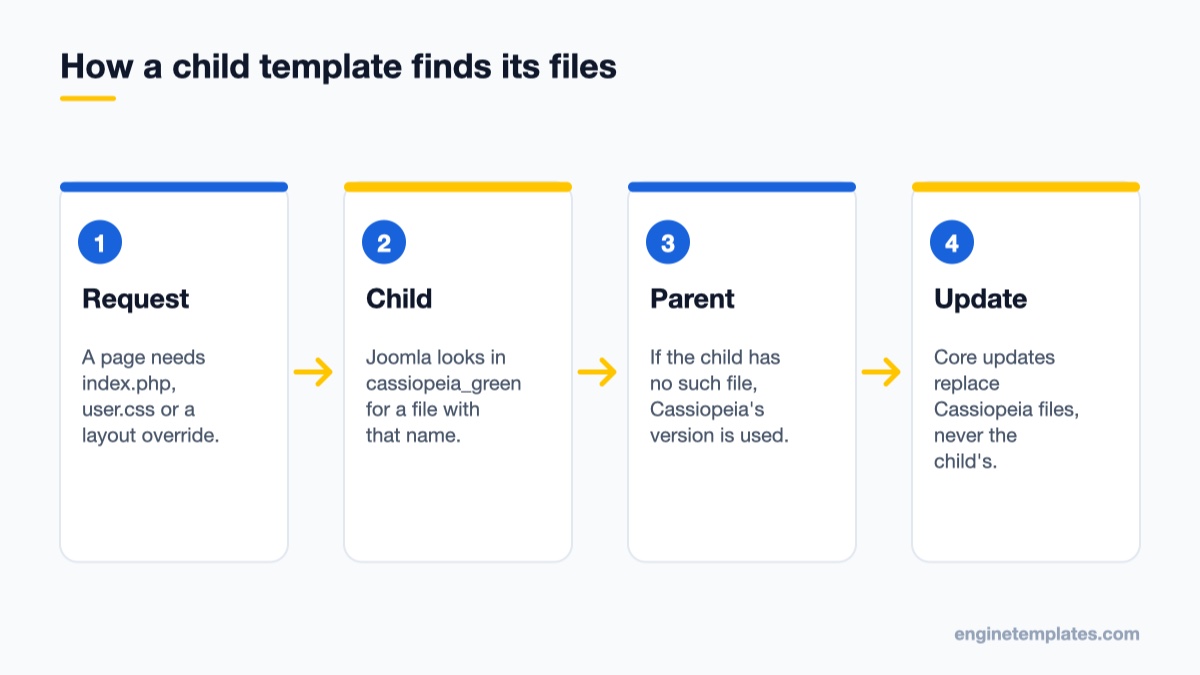
Child templates arrived in Joomla 4.1 and work the same way in Joomla 5 and 6. A child template starts with exactly one file, templateDetails.xml. That manifest names its parent, and Joomla then works through a simple rule for every file the page needs: if the child has a file with that name, use it; if not, use the parent’s file.
Joomla checks the child first and falls back to the parent for anything the child does not contain.
That rule gives you three useful properties:
Updates are safe. Joomla updates Cassiopeia’s own files but never touches the child’s folder, so your CSS, layouts and positions survive.
You only keep what you change. Parent files are not copied into the child. If you only need a new stylesheet, the child holds the manifest and one CSS file.
You can run several looks at once. Each child gets its own template style, and each menu item can choose a style, so a landing page can use a different colour scheme from the rest of the site.
There is one requirement. The parent must declare itself as a parent with <inheritable>1</inheritable> in its manifest. Cassiopeia, the default Joomla site template, does. Many commercial templates built on frameworks do not, which we cover later in this guide.
Child template vs. template override vs. editing the parent
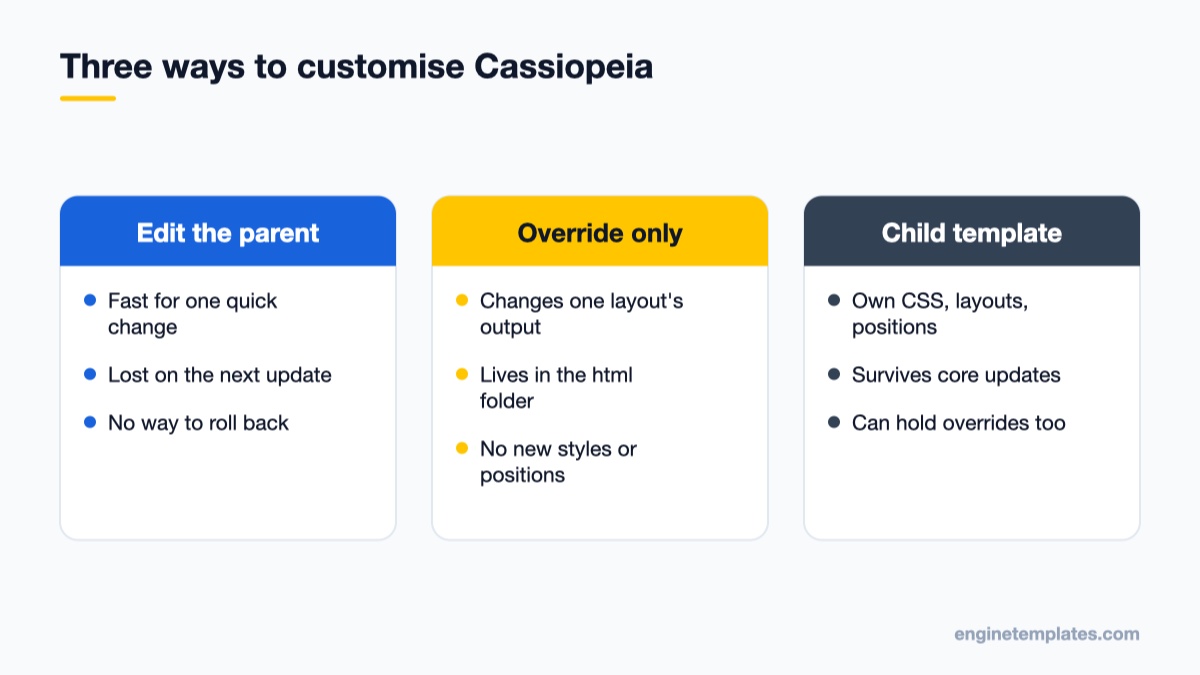
People mix these up, so here is how they relate. A template override is a copy of a component or module layout stored in a template’s html folder, used to change how one extension’s output looks. A child template is a whole template that inherits from a parent, and it can hold its own overrides too. Editing the parent means changing Cassiopeia’s files directly, the one option that an update will undo.
Only changes kept outside the parent's own files survive a Joomla update.
In practice you often use the first two together: create a child, then create your overrides inside the child instead of inside Cassiopeia. If you want a deeper look at overrides themselves, our guide to displaying Joomla custom fields with a template override shows a complete layout override from start to finish.
Step-by-step: create a child template of Cassiopeia
Before you start, take a backup or work on a staging copy, and make sure you are logged in as a Super User. The whole process takes about five minutes.
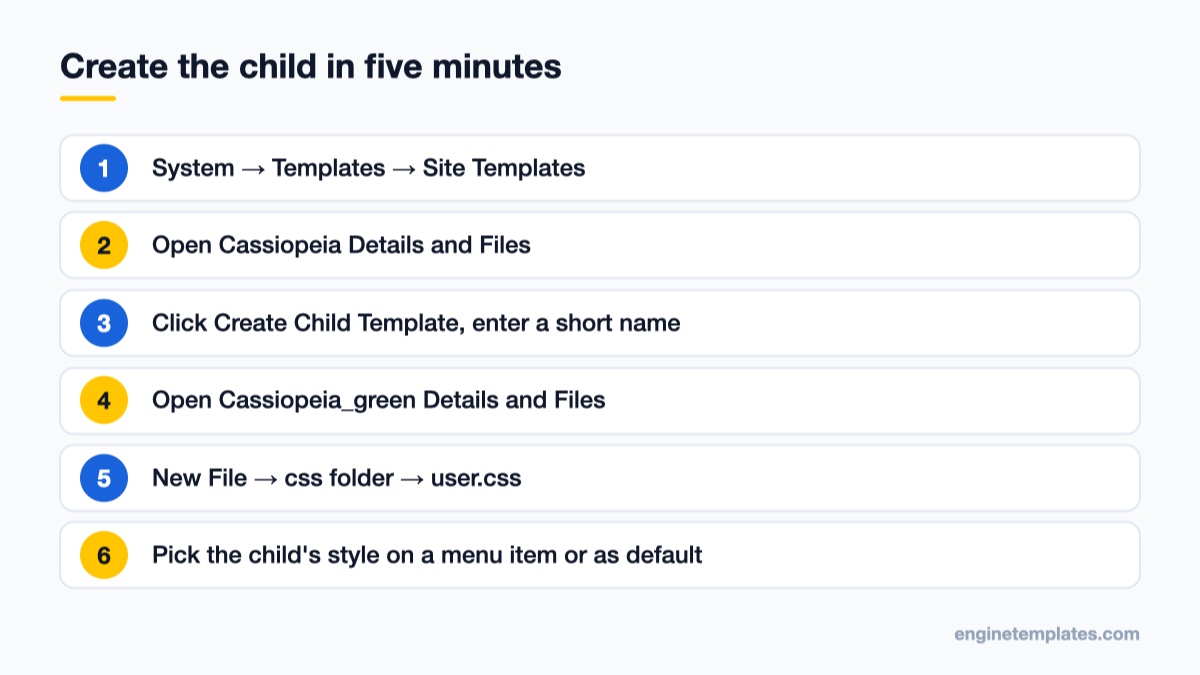
The whole process happens in the Joomla Administrator, no FTP needed.
1. Open Cassiopeia in the template manager
In the Administrator, go to System → Templates → Site Templates. You will see the list of installed site templates. Click Cassiopeia Details and Files. This opens the template’s file editor, the same screen you would use to edit its files, but you are not going to change anything here.
2. Click “Create Child Template”
In the toolbar, click Create Child Template. A small form opens with two fields:
Name: a short, lowercase name such as green or brand. Joomla adds it to the parent’s name, so green becomes cassiopeia_green.
Additional Template Styles: leave this blank for now. You can copy existing styles of the parent into the child here, but a clean start is easier to reason about.
Click Create Child Template in the form to submit it, then click Close in the toolbar to leave the parent.
3. Open the new child
Back in Site Templates, you will now see Cassiopeia_green Details and Files. Open it. On disk, Joomla has created two folders:
templates/cassiopeia_green/, which holds templateDetails.xml (and later any PHP or override files you add)
media/templates/site/cassiopeia_green/, which holds the child’s CSS, JavaScript and images
Joomla 4 and later keep template assets under the media folder rather than inside the template folder, so this split is expected, not a mistake.
Look inside the child’s templateDetails.xml
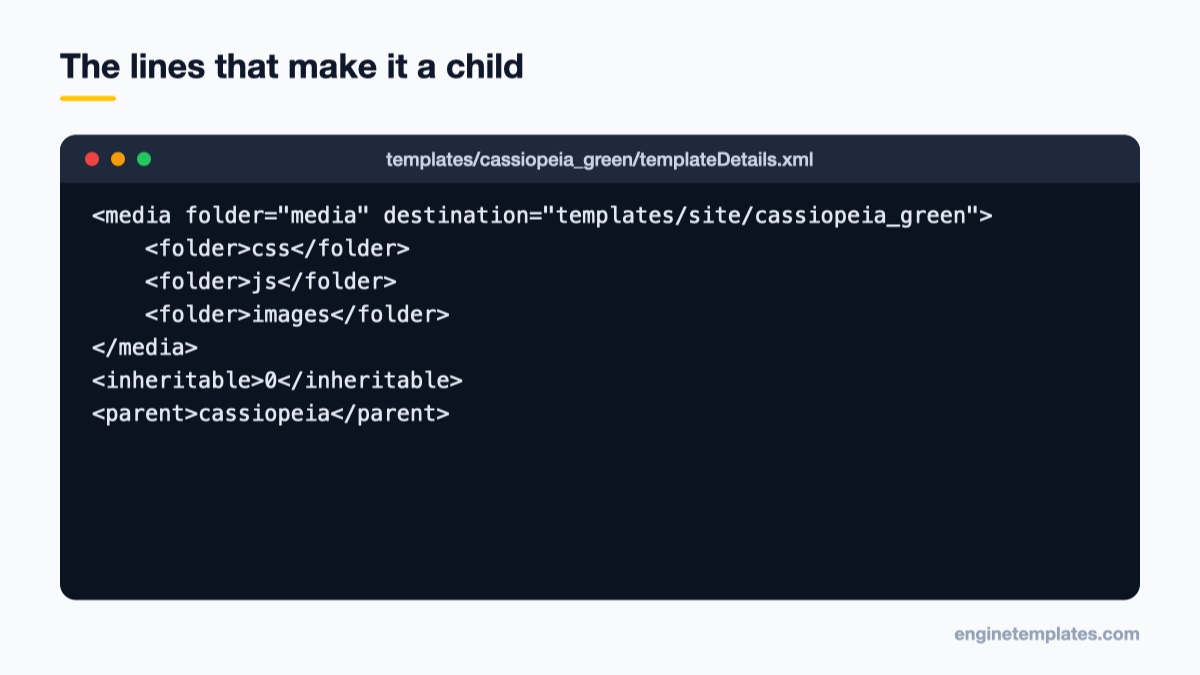
Open templateDetails.xml in the child’s editor. Most of it is the usual template metadata (name, version, author, positions, parameters). The two lines that make it a child are near the end:
The parent element and inheritable 0 tell Joomla this template inherits from Cassiopeia.
<parent> tells Joomla where to fall back for any file the child does not have. <inheritable>0</inheritable> marks the child as a child, so you cannot use it as the parent of another template. The <media> block sets where the child’s own assets live.
You can also add a module position here. Inside the <positions> element, add a line such as <position>promo-bar</position>. Use all lowercase letters and no spaces. A position only shows on the page if index.php prints it, so this pairs with the index.php override described below.
Add your own styles with user.css
The most common reason to make a child template is to restyle the site without touching Cassiopeia’s CSS. Cassiopeia loads an optional stylesheet called user.css after its own styles, and the child’s copy is the one that gets loaded.
In Cassiopeia_green Details and Files, click New File in the toolbar.
In the Create or Upload a new file form, select the css folder on the left.
Type user as the file name (no extension), choose .css as the file type, and click Create.
Add your rules and click Save & Close.
Cassiopeia exposes most of its colours as CSS custom properties, so a small block at the top of user.css can change the whole palette. For example:
Reload the front end with a hard refresh. If you see no change, check that the page is actually using the child’s style (see the next section) and clear Joomla’s cache. Our guide on clearing the Joomla cache covers the quick ways to do that.
Assign the child template to the whole site or to selected pages
Creating the child also creates a template style called cassiopeia_green - Default. Nothing on the site changes until a page uses that style. You have two choices.
Make it the site default
Go to System → Templates → Site Template Styles and click the star in the Default column next to the child’s style. Every page that does not choose a specific style now uses the child.
Use it on selected pages only
Go to Menus → Main Menu (or whichever menu holds the page), open or create a menu item, and pick the child’s style in the Template Style field. Save. Only pages reached through that menu item use the child template, which is handy for a campaign landing page or a section with its own branding.
While you are in Site Template Styles, open the child’s style and rename it to something readable, such as “Cassiopeia Green”. The style edit screen is also where you set the child’s own logo, brand text, fonts and colour preset, separately from the parent’s style.
Override layouts and index.php inside the child
Overrides work in a child exactly as they do in a normal template, but they live in the child’s html folder, so they survive updates too.
Extension overrides: open Cassiopeia_green Details and Files, switch to the Create Overrides tab, and pick a module, component or layout (for example com_content → article). Joomla copies the core layout into templates/cassiopeia_green/html/ and you edit that copy.
Page structure: to change the order of page areas or print a new position like promo-bar, copy Cassiopeia’s index.php into the child and edit the child’s copy. Only that one file is duplicated; everything else still comes from the parent.
Keep the number of copied files small. Every file you copy from the parent is a file that no longer receives the parent’s fixes, so after major Joomla releases, compare your copied index.php with the new Cassiopeia version. A file comparison tool makes this quick: look for changed markup, new module positions and new asset calls.
Move a child template to another site
Because a child is small, it is easy to reuse. Zip templateDetails.xml, any PHP files (such as index.php), the html folder if you have overrides, and a media folder containing the child’s css, js and images folders. Install the zip on the other site through System → Install → Extensions. The other site must have the same parent (Cassiopeia) installed.
If you want a second copy on the same site, change the template name and the media destination in templateDetails.xml before installing, or Joomla will treat it as the same template.
Common mistakes and how to fix them
No “Create Child Template” button. The template is not inheritable. Check its templateDetails.xml for <inheritable>1</inheritable>. Most framework-based templates (Helix Ultimate, T4, Gantry and similar) use their own customisation system instead, usually a custom.css file and settings in the framework’s options panel.
The child looks exactly like the parent. That is expected until you add files. Also check that the page uses the child’s style, not the parent’s.
user.css is ignored. Make sure the file is in the child’s css folder (media/templates/site/cassiopeia_green/css/user.css), the name is exactly user.css, and caches (Joomla, browser, CDN) are cleared.
A new position does not appear in the module manager. Add it to <positions> in the child’s manifest. To show modules there on the front end, the child’s index.php must also print it.
Editing Cassiopeia “just once”. Any direct edit to the parent will be lost on the next update. Move it into the child.
When your site uses a commercial template
The child template feature belongs to Cassiopeia and any other template whose authors mark it as inheritable. If your site runs on a commercial Joomla template, the same principle applies even without the button: keep your changes out of the template’s core files. For Engine Templates designs, use the template’s custom CSS file and its settings panel, so updates leave your work alone.
If you are planning a new site and want a ready-made design to start from, ET Airlife is a free, clean services template that suits local trades and service businesses, and ET Keramix is a free template for small product and craft shops. You can browse the rest of our free Joomla templates as well.
Wrap-up: your next step
Create a child of Cassiopeia today, even if all you need right now is a few lines of CSS. Move any edits you have made directly to Cassiopeia into the child’s user.css or overrides, set the child as the default style, and test the site. The next time you apply an update, like the steps in our Joomla security release update guide, your customisations will still be there. Running WordPress as well? The same idea exists there; see how to create a WordPress child theme.
We're a Digital Team from EngineTemplate with 5 content experts. Our team has 5 years exp in open source Joomla and WordPress, we make daily blogs and build useful resources for everyone who is having issues with open source while using it.
 ET Digital Team