You run three or four WordPress sites for one client, one brand or one school, and every update day means logging into each dashboard separately to update the same plugins and the same theme. WordPress Multisite fixes that: one installation, one set of files, one dashboard for updates, and as many sites as you need. This tutorial walks through turning a normal WordPress site into a multisite network, step by step, with the exact code and menu paths from the official documentation.
What WordPress Multisite actually is
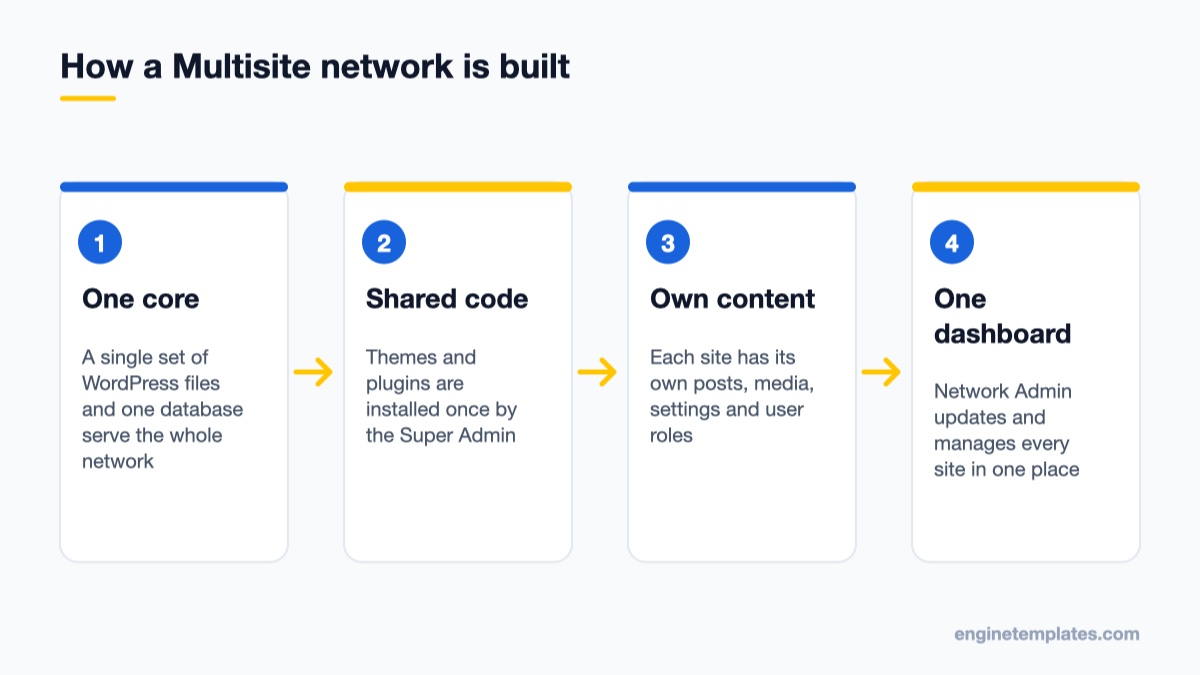
One WordPress install shares core, themes and plugins while each site keeps its own content.
Multisite is a feature built into WordPress core. You do not install a plugin to get it; you switch it on with a constant in wp-config.php. Once enabled, your installation becomes a network. Every site in the network shares the same WordPress core files, the same wp-content/plugins folder and the same wp-content/themes folder, but each site gets its own content tables in the database, its own media uploads folder, its own settings and its own users’ roles.
A new role appears at the top: the Super Admin (also called the Network Admin). According to the WordPress documentation, the Super Admin is the only role that can install themes and plugins for the network. Site administrators can still activate the themes and plugins you make available to them, but they cannot install new ones. That is usually exactly what an agency or an organisation wants.
When Multisite is a good fit
A company with regional or language sites that share the same theme and plugins.
A university, school or club with department sites run by different people.
An agency hosting several small, similar client sites on one server it controls.
A blog network where new sites should be created in a few clicks.
When it is the wrong choice
The sites need different plugin versions or very different plugin stacks.
Each site belongs to a different client who may move hosts later. Pulling one site out of a network is much more work than moving a single install.
One site is a heavy WooCommerce store and the others are small brochure sites. A traffic spike or a bad plugin on one site affects all of them, because they share the same code and database server.
If you only want a safe copy of your site for testing, you do not need Multisite at all; a staging site does that job better. Our roundup of WordPress staging plugins covers that route.
Sub-domains or sub-directories: decide first
Pick the address structure before running Network Setup, because changing it later is hard.
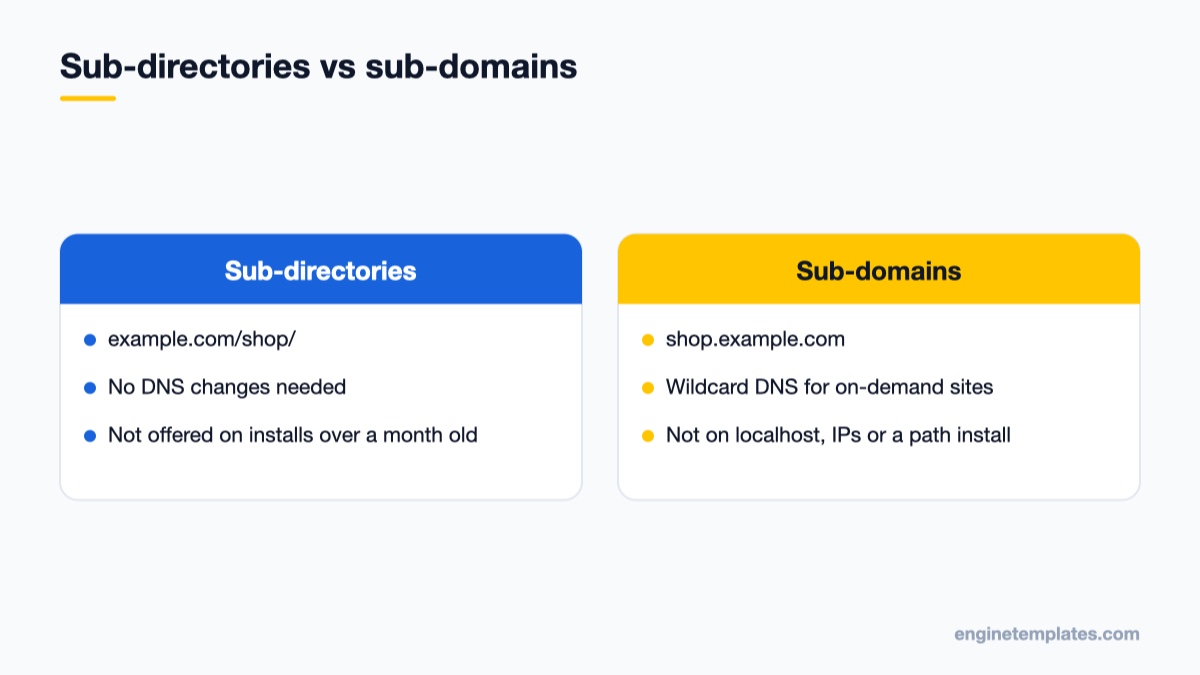
Before you touch any file, decide how the sites in your network will be addressed. WordPress asks you to pick one of two structures during setup, and while the documentation notes you can change it later, reconfiguring an existing network is difficult. Treat it as a one-time choice.
Sub-directories: sites live at paths, for example example.com/shop/ and example.com/news/. No DNS changes are needed. This is the simplest option for most people.
Sub-domains: sites live at shop.example.com and news.example.com. If you want new sites to be created on demand without touching DNS each time, you need a wildcard DNS record (*.example.com) pointing to your server, plus a wildcard SSL certificate or a host that issues certificates per sub-domain.
The official “Before You Create A Network” guide lists the restrictions that limit your choice:
Sub-domain networks are not possible if your WordPress address contains a path (WordPress installed at example.com/blog), if it is localhost, or if it is an IP address such as 127.0.0.1.
Sub-directory networks are not offered if the existing installation has been set up for more than a month. This protects you from URL clashes between existing posts and new site paths.
No network is possible if the WordPress address uses a port other than :80 or :443.
Whatever you choose, you can still give any site its own domain name later through domain mapping, which is covered near the end of this guide.
Check the requirements before you start
Multisite relies on rewrite rules, so your server has to support them. On Apache, the documentation says mod_rewrite must be loaded, .htaccess files must be honoured (AllowOverride set to All or Options All), and FollowSymLinks must not be permanently disabled. On Nginx, there is no .htaccess; your host or you will need to add the multisite rules to the server block instead. Most managed WordPress hosts have a one-click Multisite option or a documented procedure, so check your host’s help pages first.
You also need:
Administrator access to the WordPress site.
File access to edit wp-config.php and .htaccess, through SFTP, SSH or your host’s file manager.
A full backup of files and database. If you do not have a backup routine yet, start with one of the tools in our WordPress backup plugins list.
Working pretty permalinks. Go to Settings → Permalinks, choose any structure except Plain, save, and confirm a post URL loads.
If your file permissions are too strict, WordPress cannot read the files you edit, and if they are too loose you open a security hole. Our guide to WordPress and Joomla file permissions explains the safe defaults.
How to set up WordPress Multisite, step by step
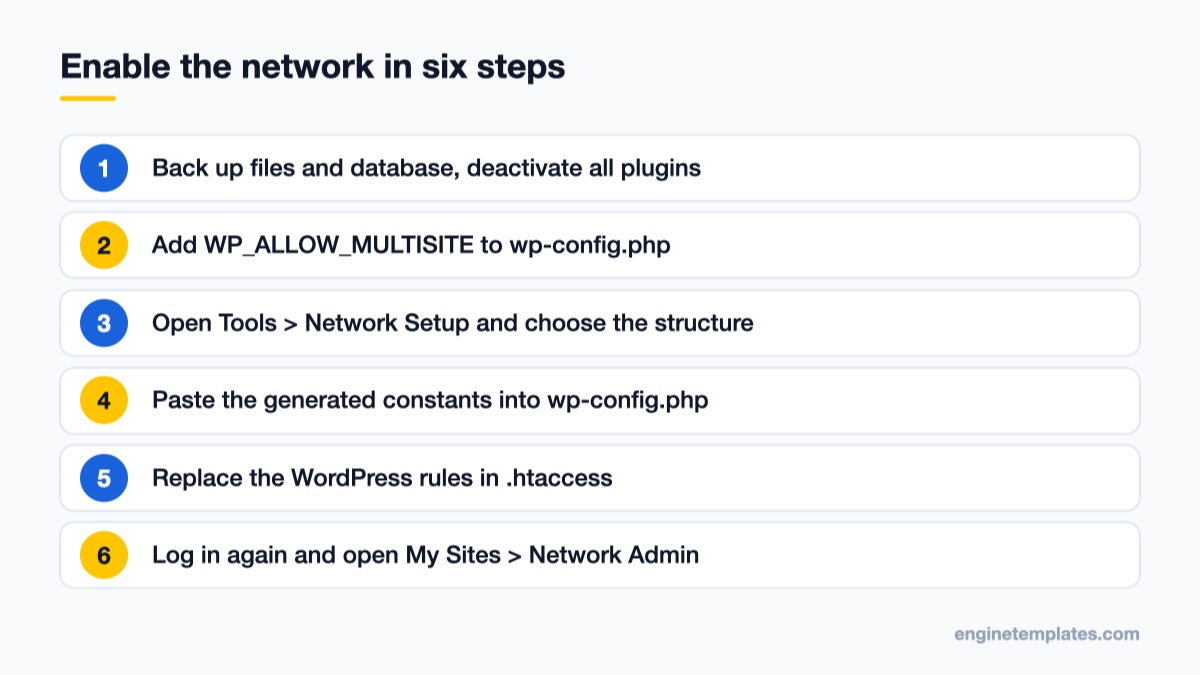
The full conversion from a single site to a network, in order.
Step 1: Back up and deactivate all plugins
Take a fresh backup of the database and the whole wp-content folder, plus copies of wp-config.php and .htaccess. Then go to Plugins → Installed Plugins, select all, choose Deactivate from Bulk actions and apply. The official guide asks for this because some plugins misbehave during the conversion. You will reactivate them afterwards.
If you plan to run WordPress from its own directory (core files in a sub-folder, site at the root), make that change now. The documentation is explicit that it must happen before Multisite is activated.
Step 2: Allow Multisite in wp-config.php
Open wp-config.php in the root of your installation. Find the line /* That's all, stop editing! Happy publishing. */ and add this directly above it:
Save the file and reload your dashboard. This constant does not create the network yet; it only unlocks the setup screen.
Step 3: Run Network Setup
Go to Tools → Network Setup. On the “Create a Network of WordPress Sites” screen, choose Sub-domains or Sub-directories (if one option is missing, one of the restrictions above applies). Check the Network Title and Network Admin Email, then click Install.
If you picked sub-domains, WordPress may warn that wildcard sub-domains are not configured. You can ignore the warning if you plan to add DNS records for each site by hand, but on-demand sub-domain sites will not resolve until the wildcard record exists.
Step 4: Add the network code to wp-config.php
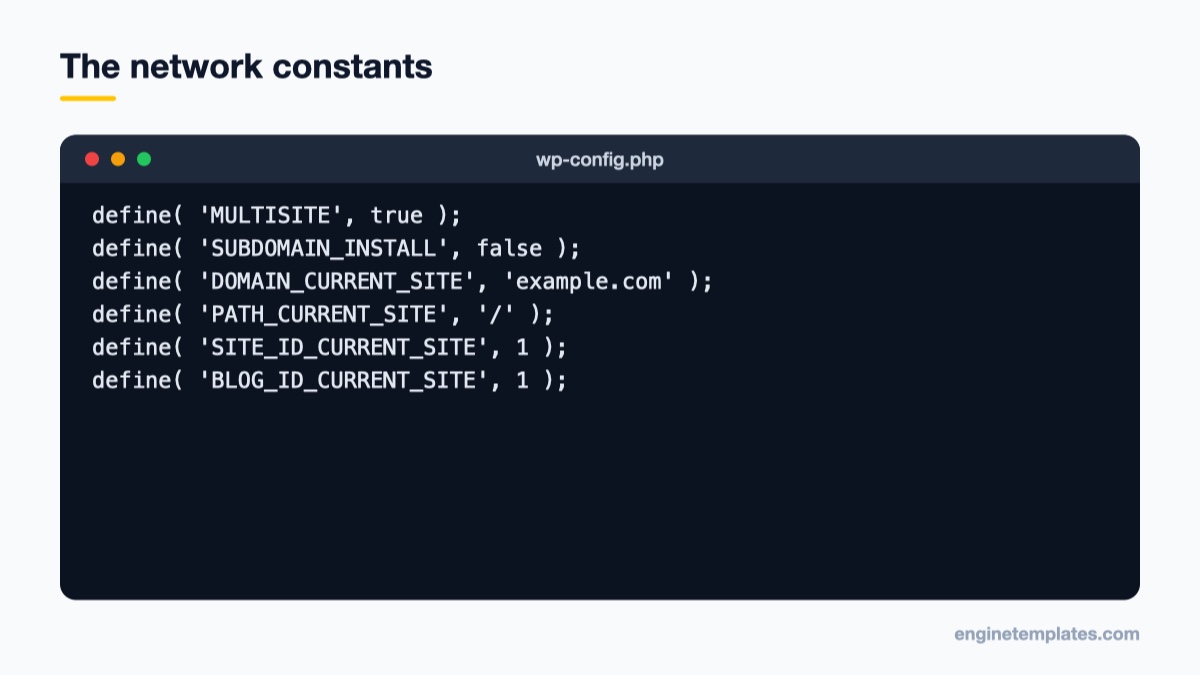
Generated by Network Setup for a sub-directory network; copy your own values from that screen.
The next screen shows code generated for your exact installation. Copy it from that screen rather than from any tutorial, because the domain and path values are filled in for you. For a sub-directory network on example.com it looks like this, and it goes just below the WP_ALLOW_MULTISITE line:
For a sub-domain network, SUBDOMAIN_INSTALL is true. Leave the other values exactly as the setup screen gives them.
Step 5: Replace the WordPress rules in .htaccess
On Apache, open .htaccess in the same folder as wp-config.php and replace the existing block between # BEGIN WordPress and # END WordPress with the rules the setup screen shows. For a sub-directory network, the rules published in the WordPress .htaccess documentation are:
# BEGIN WordPress Multisite
# Using subfolder network type: https://wordpress.org/documentation/article/htaccess/#multisite

RewriteEngine On
RewriteRule .* - [E=HTTP_AUTHORIZATION:%{HTTP:Authorization}]
RewriteBase /
RewriteRule ^index\.php$ - [L]

# add a trailing slash to /wp-admin
RewriteRule ^([_0-9a-zA-Z-]+/)?wp-admin$ $1wp-admin/ [R=301,L]

RewriteCond %{REQUEST_FILENAME} -f [OR]
RewriteCond %{REQUEST_FILENAME} -d
RewriteRule ^ - [L]
RewriteRule ^([_0-9a-zA-Z-]+/)?(wp-(content|admin|includes).*) $2 [L]
RewriteRule ^([_0-9a-zA-Z-]+/)?(.*\.php)$ $2 [L]
RewriteRule . index.php [L]

# END WordPress Multisite
The sub-domain version is shorter because no site prefix needs stripping from the path: the wp-admin rule becomes RewriteRule ^wp-admin$ wp-admin/ [R=301,L] and the last rules become RewriteRule ^(wp-(content|admin|includes).*) $1 [L] and RewriteRule ^(.*\.php)$ $1 [L]. If your host has symlinks disabled you may also need Options FollowSymlinks at the top of the file, as the official guide notes.
Step 6: Log in again
Save both files and use the log-in link on the setup screen. Your old session cookie is no longer valid, so if the log-in loops, clear the cookies for your domain and try again. After logging in, My Sites appears as the second item in the admin toolbar, with a Network Admin submenu. That is your new control centre.
Configure the network
Open My Sites → Network Admin → Dashboard. The network admin has its own menu, separate from each site’s dashboard. These are the screens you will use most.
Network Settings
Under Settings → Network Settings you control registration (whether visitors can create accounts or sites), the email new site admins receive, upload limits for every site (allowed file types, maximum file size and storage space per site) and the “Menu Settings” option that lets site administrators manage plugins on their own sites. Leave registration closed unless you really run an open blog network; spam sign-ups arrive quickly.
Themes and plugins
Themes and plugins are installed once, from Network Admin → Themes and Network Admin → Plugins. Two actions matter:
Network Enable on a theme makes it available for site admins to activate. It does not switch any site to that theme.
Network Activate on a plugin runs it on every site in the network. Use this for security, backup, caching and SEO plugins that every site needs. Plugins that only one site needs can be activated on that site alone.
Because all sites share one themes folder, editing theme files affects every site using that theme. Customise with a child theme instead; our tutorial on creating a WordPress child theme works the same way inside a network.
Add your first site
Go to Sites → Add New. Enter the site address (just the path or sub-domain part), a site title, the site language and the admin email. If the email belongs to an existing user, that user becomes the site’s administrator; otherwise WordPress creates a new user and emails the log-in details. Click Add Site, then visit the new site’s dashboard from My Sites and pick its theme under Appearance → Themes.
Give a site its own domain (domain mapping)
Since WordPress 4.5, domain mapping is built into core, so you no longer need the old domain mapping plugin. The process from the official domain mapping guide:
Point the new domain’s DNS to your server and add it to your hosting account (parked on, or aliased to, the main domain).
Make sure the domain has an SSL certificate; the documentation recommends SNI for the extra domains.
In Network Admin → Sites, click Edit under the site and enter the full URL, for example https://brand-two.com, in the Site Address (URL) field. Save.
If log-ins on the mapped domain fail silently or you see a “cookies are blocked” message, add this line to wp-config.php after the network constants:
define( 'COOKIE_DOMAIN', $_SERVER['HTTP_HOST'] );
Common mistakes and how to fix them
“Tools → Network Setup” does not appear. The WP_ALLOW_MULTISITE line was placed below the require_once line at the bottom of wp-config.php, or there is a typo. Move it above the “stop editing” comment.
New sites show a 404 or unstyled pages. The .htaccess rules were not replaced, mod_rewrite is off, or the server is Nginx and ignores .htaccess. Ask your host to add the multisite rewrite rules.
Sub-domain sites do not load at all. The wildcard DNS record or the matching SSL certificate is missing. Check DNS first, then the certificate.
Endless log-in redirect. Clear cookies, confirm DOMAIN_CURRENT_SITE matches the real domain without www mismatches, and add the COOKIE_DOMAIN line if you use mapped domains.
A white screen after reactivating plugins. One plugin is not multisite-compatible. Read the PHP error log to find it; our guide to reading PHP error logs shows where to look. Rename the plugin’s folder over SFTP to disable it.
Uploads failing on a new site. Check the upload space and file size limits in Network Settings; each site has its own quota.
Choosing a theme for a network
In a network, one theme is often reused across many sites with different colours, logos and content, so a clean, flexible business theme pays off. ET Startup is a free, responsive business theme that works well for a set of similar company or branch sites, and ET Epic gives each site a more corporate look with the same easy setup. Network-enable one or both, then let each site admin activate the one that fits. You can browse more options in our free WordPress themes collection.
Wrap-up: your next step
Turning on WordPress Multisite takes about fifteen minutes: back up, add WP_ALLOW_MULTISITE, run Tools → Network Setup, paste the generated code into wp-config.php and .htaccess, and log in again. The real work is the decision before it: sub-directories or sub-domains, and whether your sites really belong together. Once the network is running, network-activate your backup and security plugins first, then add your second site and map its domain. For the full reference, keep the official Create a Network guide and the Before You Create a Network checklist open while you work.
We're a Digital Team from EngineTemplate with 5 content experts. Our team has 5 years exp in open source Joomla and WordPress, we make daily blogs and build useful resources for everyone who is having issues with open source while using it.
 ET Digital Team