You tweaked a few lines in your theme’s style.css or header.php, the theme released an update, and every change disappeared. That is the problem a child theme solves: your customizations live in a separate folder that theme updates never touch, while the parent theme keeps doing the heavy lifting.
This guide shows how to create a WordPress child theme by hand for both classic themes and block themes, how to load the stylesheets correctly, how to override templates and theme.json settings, and how to avoid the mistakes that make a child theme look broken the moment you activate it.
What a Child Theme Is (and When You Need One)
A child theme is a theme that declares another installed theme as its parent. WordPress loads the parent’s templates, functions and styles, then lets the child replace or add to them file by file. According to the official Theme Handbook, the only file a child theme strictly requires is style.css with a Template header, and the parent theme must be installed in wp-content/themes.
You need a child theme when you plan to change theme code: PHP templates, template parts, block templates, functions.php snippets or a theme stylesheet. You do not need one for changes WordPress already stores in the database, such as Customizer settings, menus, widgets or edits you make in the Site Editor. Those survive theme updates on their own.
For a handful of CSS rules, the Additional CSS panel is also fine. Once you start editing files, a child theme is the safe, update-proof place for them.
How WordPress Loads a Parent and Child Theme
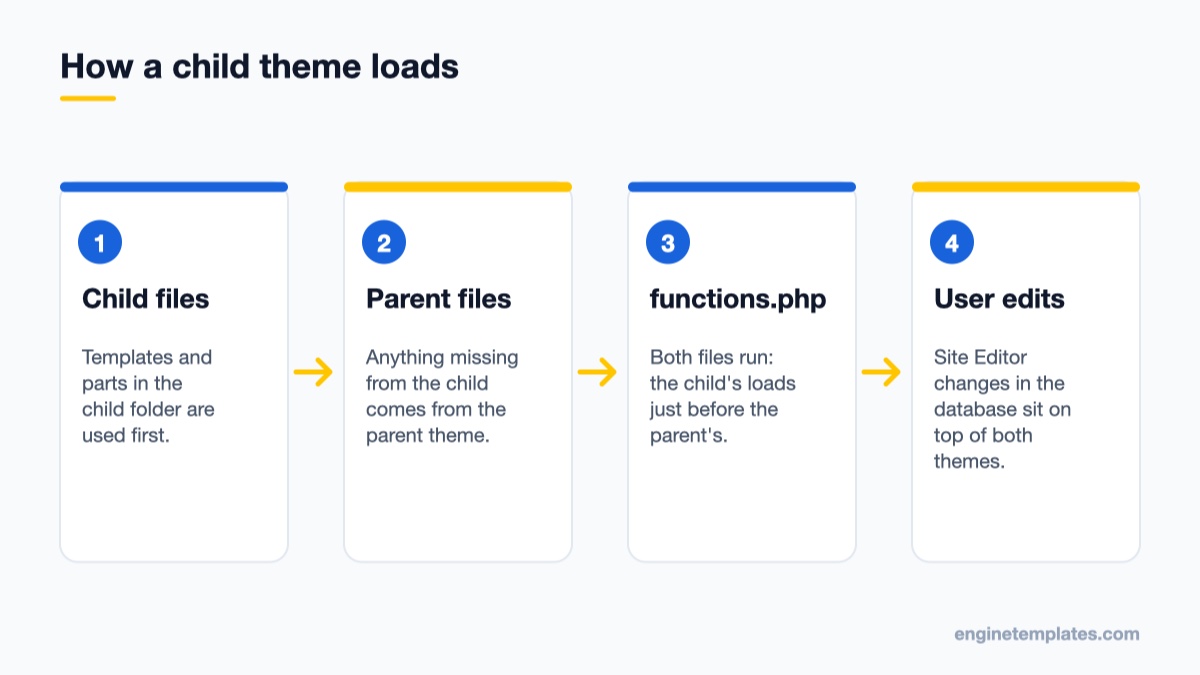
WordPress checks the child theme first and falls back to the parent for anything the child does not provide.
Understanding the load order explains almost every child theme behaviour you will see:
Templates and files: when WordPress looks for a template (for example single.php or templates/single.html), it checks the child theme first and falls back to the parent. A file with the same name in the child wins.
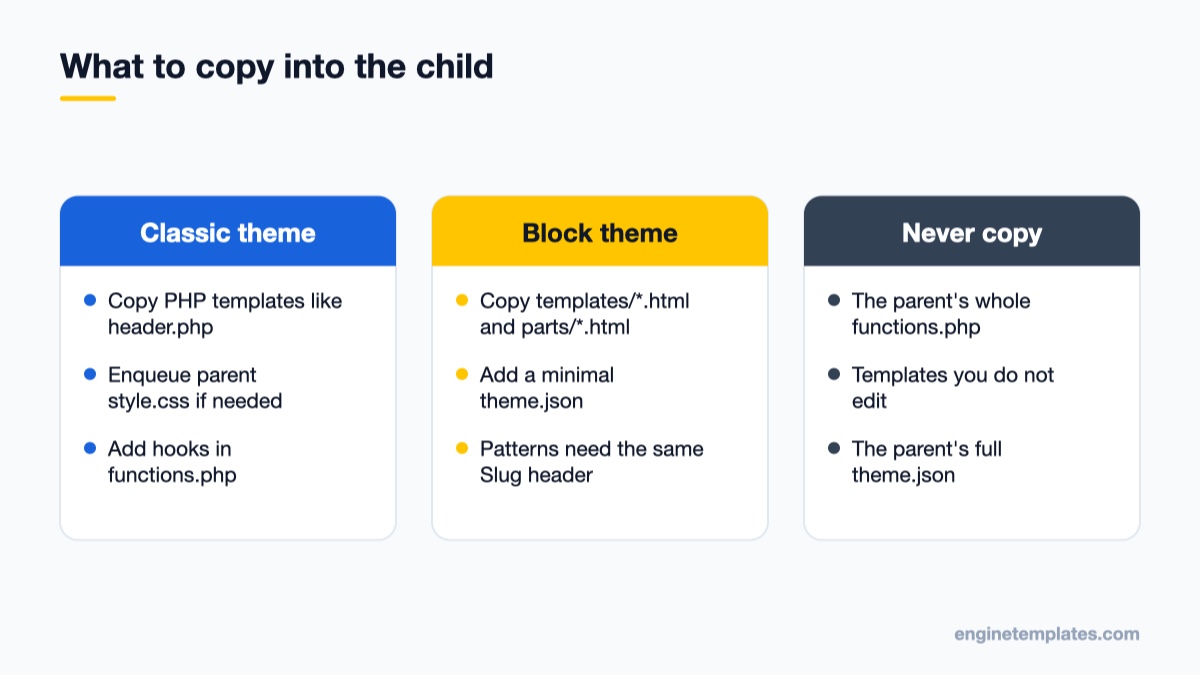
functions.php: this file is not replaced. Both run, and the child’s functions.php loads immediately before the parent’s. That is why you never copy the parent’s whole functions.php into the child: duplicate function names cause a fatal error.
Stylesheets: WordPress does not automatically load both style.css files. What gets loaded depends on how the parent enqueues its styles, which is covered in the next sections.
theme.json (block themes): the child’s theme.json is merged with the parent’s, so you only list the settings you want to change. User changes made in the Site Editor sit on top of both.
Create a Child Theme for a Classic Theme
Classic themes use PHP templates such as header.php, footer.php and page.php, and are usually styled through style.css plus the Customizer. Here is the manual route, which works on any host with file access (SFTP, your host’s file manager or a local install).
Step 1: Find the parent theme’s folder name
Open wp-content/themes/ and note the exact folder name of the parent theme, for example et-startup. The folder name matters, not the display name you see under Appearance → Themes. It is case-sensitive on most Linux servers.
Step 2: Create the child folder and style.css
Create a new folder next to it. A common convention is the parent name plus -child, for example wp-content/themes/et-startup-child/. Inside it, create style.css with this header:
/*
 Theme Name:   ET Startup Child
 Template:     et-startup
 Description:  Child theme for ET Startup
 Version:      1.0.0
 Text Domain:  et-startup-child
*/
Theme Name is what appears in the dashboard. Template must match the parent’s folder name exactly. Every other line is optional but useful.
Step 3: Load the stylesheets from functions.php
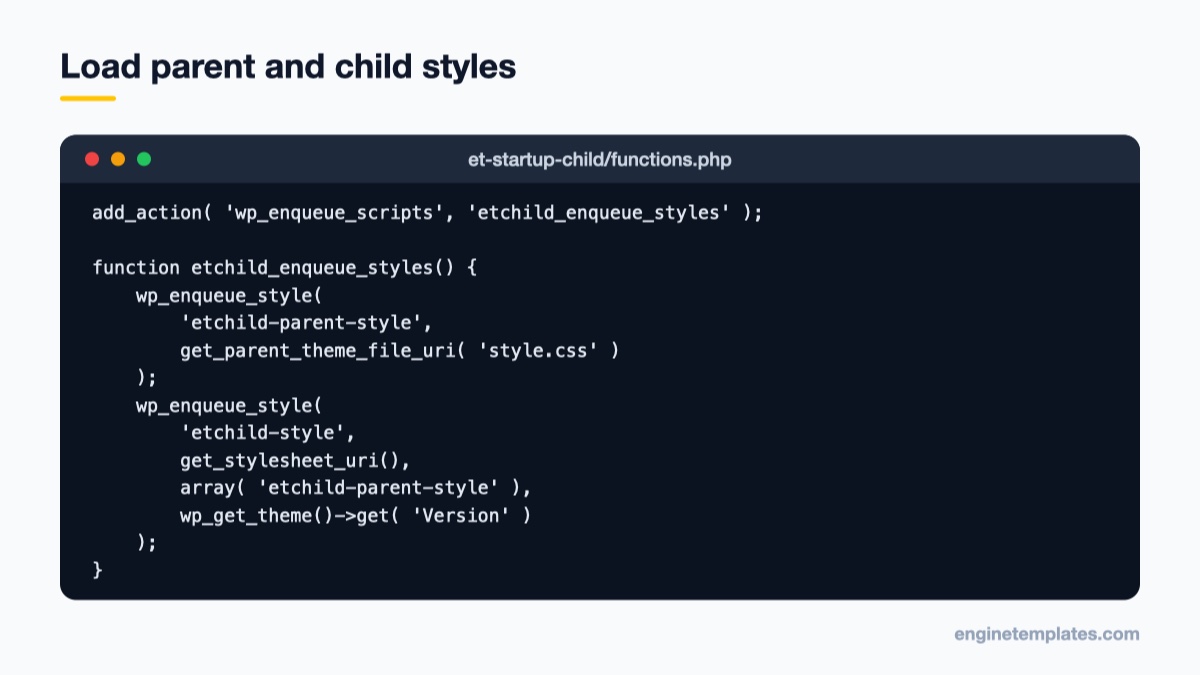
Enqueue the parent stylesheet first, then the child stylesheet with the parent as a dependency.
Create functions.php in the child folder. Many classic themes load their stylesheet with get_stylesheet_uri(), which always points to the active theme’s style.css. Once the child is active, that means the child’s file loads and the parent’s styles vanish. The fix is to enqueue the parent stylesheet yourself, then the child stylesheet with the parent as a dependency:
The dependency array guarantees the child CSS prints after the parent CSS, so your rules win when specificity is equal. The version argument reads the Version line from your style.css; bump it after editing and browsers fetch the new file instead of a cached copy.
Check the parent theme’s own functions.php before you copy this. Some themes already enqueue the parent stylesheet with get_template_directory_uri() or get_parent_theme_file_uri(); in that case you only need the second wp_enqueue_style() call. Loading the parent file twice will not break the site, but it wastes a request. The wp_enqueue_style() reference explains each argument.
Step 4: Activate and verify
Go to Appearance → Themes. The child theme appears with its name (and without a preview image unless you add a screenshot.png to the folder). Click Activate, then open the front end. The site should look exactly as before. If it looks unstyled, revisit Step 3.
Note that Customizer settings are stored per theme, so options such as logo, colours or header layout set in the parent may need to be re-entered after you switch to the child. Do this on a staging copy first if the site is live.
Create a Child Theme for a Block Theme
Block themes such as Twenty Twenty-Five are built from HTML templates, template parts, patterns and theme.json. A child of a block theme follows the same style.css rule but usually needs much less CSS, because most styling happens in theme.json.
The quick route: Create Block Theme plugin
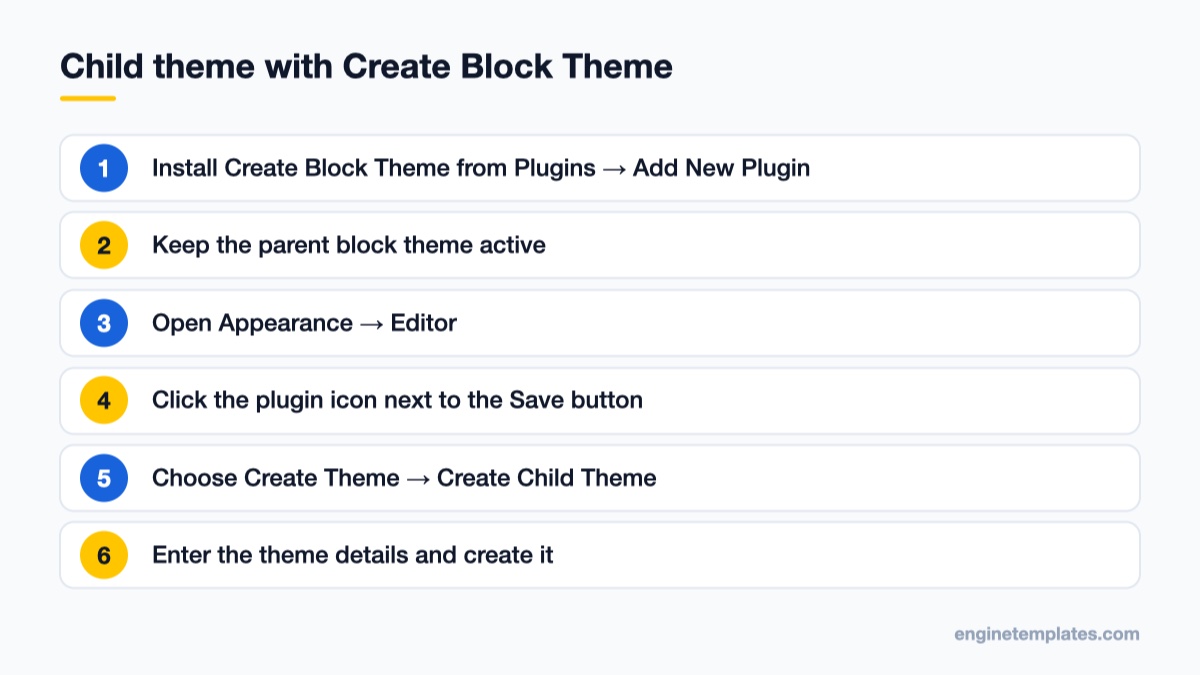
The Create Block Theme plugin generates a block child theme from inside the Site Editor.
The free Create Block Theme plugin, maintained by the WordPress.org community, can generate a child theme from the active block theme:
Install and activate Create Block Theme from Plugins → Add New Plugin.
Make sure the parent block theme is the active theme.
Open Appearance → Editor and click the plugin’s icon next to the Save button at the top of the editor.
Choose Create Theme, then Create Child Theme.
Fill in the theme name and details, then create it. The plugin writes the child folder with style.css and a theme.json and activates it.
Do not confuse Create Child Theme with Clone Theme: a clone is a full independent copy that no longer receives the original’s updates, which is the opposite of what you want here.
The manual route
Create wp-content/themes/twentytwentyfive-child/style.css with a header whose Template line reads twentytwentyfive. Then add a theme.json that contains only what you change. This example adds one colour to the palette and sets the site’s base font size:
Be careful with arrays such as palette: a palette defined in the child theme replaces the parent’s theme palette rather than appending to it, so copy across any parent colours you still want to offer in the editor. Plain values like the font size above merge cleanly. Our earlier guide on customizing colors and fonts with theme.json walks through the full structure.
Block themes rarely need a stylesheet enqueue at all. If you do add CSS to the child’s style.css, load it with the get_stylesheet_uri() call from the classic example, or better, register it as a block style as described in our custom block styles tutorial.
Override Templates, Parts and Functions Safely
Override only the files you change, so the rest keeps receiving parent updates.
To change a parent file, copy it into the same relative path in the child theme and edit the copy:
What you want to change
Classic theme (copy to child)
Block theme (copy to child)
Header
header.php
parts/header.html
Single post layout
single.php
templates/single.html
Page layout
page.php
templates/page.html
A pattern
Not applicable
patterns/name.php with the same Slug header
Only copy the files you actually change. Every copied file stops receiving the parent’s fixes for that template, so a child theme with forty copied templates is barely better than editing the parent. New files that do not exist in the parent, such as a custom templates/page-landing.html, are simply added.
Inside PHP files, reference child assets with get_theme_file_uri() and get_theme_file_path(). These functions look in the child theme first and fall back to the parent, so get_theme_file_uri( 'assets/logo.svg' ) keeps working whether the file lives in the child or the parent.
For functions.php, add your own code rather than copying the parent’s. If the parent wraps a function in if ( ! function_exists( 'name' ) ), you can define a function with the same name in the child to replace it, because the child loads first. Otherwise, use hooks: remove_action() and add_action() on the same hook the parent uses, typically inside an after_setup_theme callback so the parent’s hooks are already registered.
Common Mistakes and How to Fix Them
“The parent theme is missing” or the child does not appear. The Template value does not match the parent folder name, or the parent is not installed. Check spelling and letter case.
The site loses all styling after activation. The parent loads its CSS with get_stylesheet_uri(), which now points at the child. Add the parent enqueue from Step 3.
“Cannot redeclare function” fatal error. You copied the parent’s functions.php or a function from it. Delete the duplicate and use a hook or a unique function prefix instead. If the screen is white, rename the child folder over SFTP to fall back to a default theme.
Edits to a block template file do nothing. The template was customized in the Site Editor, and database customizations override theme files. In Appearance → Editor → Templates, open the template’s actions menu and reset it to the theme version, then your file takes effect.
CSS changes do not show. Bump the Version in style.css and clear your page and browser cache. Our guide to clearing every cache layer in WordPress covers caching plugins, server caches and CDNs.
Editing files from the dashboard. The built-in theme file editor saves directly to the live site with no undo. Edit locally or on staging and upload instead; many owners disable the theme and plugin editor entirely.
Picking a Parent Theme That Plays Well With a Child
A child theme is only as maintainable as its parent. Look for a parent that is updated regularly, uses standard enqueue functions and template names, and keeps its options in the Customizer or theme.json rather than in hard-coded markup. Free Engine Templates themes such as ET Startup and ET Epic are business themes with a conventional file structure, which makes them straightforward parents for a branded child theme on a client project. You can browse the rest in our free WordPress themes collection.
Wrap-Up: Your Next Step
Create the child folder, add style.css with the correct Template line, add the stylesheet enqueue if the parent needs it (classic) or a minimal theme.json (block), and activate it on a staging copy. Then move your existing customizations into it one at a time: CSS first, then template overrides, then functions. From that point on you can click “Update” on the parent theme without holding your breath. When you are ready to go further, the Global Settings and Styles chapter of the Theme Handbook documents every theme.json key your child can override.
We're a Digital Team from EngineTemplate with 5 content experts. Our team has 5 years exp in open source Joomla and WordPress, we make daily blogs and build useful resources for everyone who is having issues with open source while using it.
 ET Digital Team