You edit a stylesheet, change a heading or swap a logo, click Save, reload the page, and nothing has changed. Reload again: still the old version. Then a colleague on another laptop sees the new design while you do not. This is almost never a bug in your theme. It is a cache somewhere between your server and your screen serving an old copy, and the fix is to find which layer is holding on to it.
This guide walks through every cache layer a typical WordPress or Joomla site has, in the order you should check them, with the exact place to clear each one. It ends with a small code change that stops the most common case, stale CSS, from happening again.
Why your changes are not showing: the cache layers
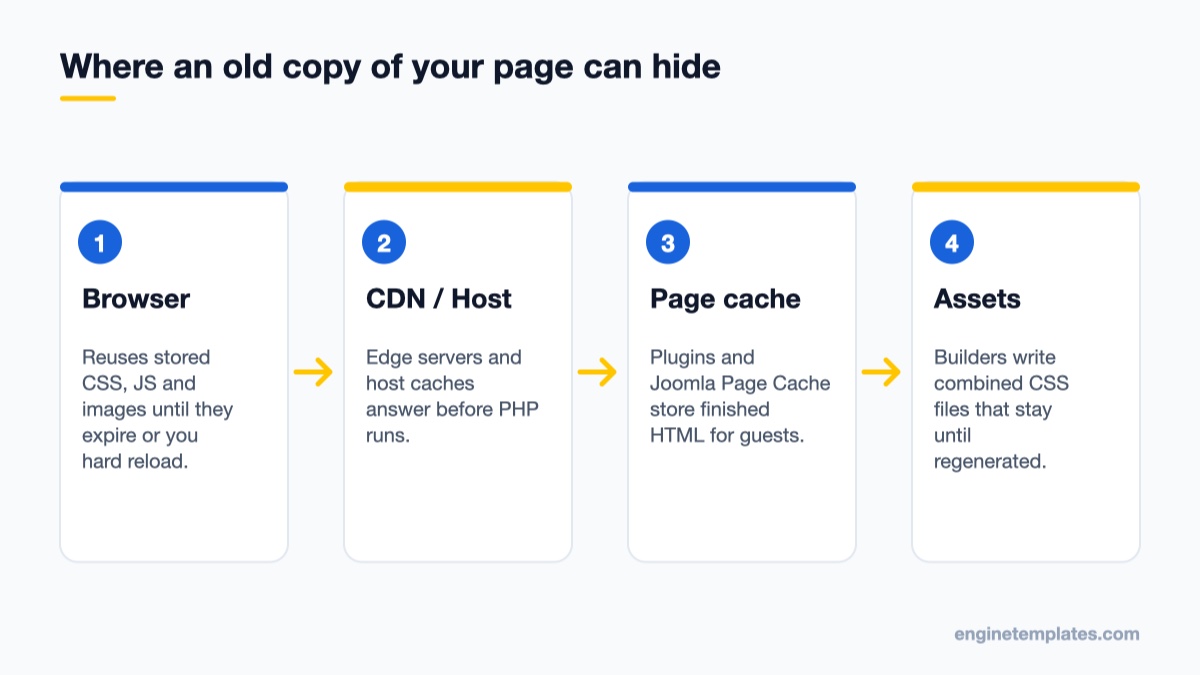
A modern site keeps copies of its output in several places so pages load fast. Each copy is useful until you change something, and then each one can show the old version until it expires or is cleared. On a typical setup a request passes through these layers, from closest to you to closest to the database:
A request passes several caches; any one of them can serve the old version.
Browser cache. Your browser stores CSS, JavaScript, images and sometimes whole pages, and reuses them on the next visit.
CDN or proxy cache. Services such as Cloudflare keep copies of your files on edge servers around the world.
Server or host cache. Many managed hosts run Varnish, NGINX FastCGI cache or LiteSpeed cache in front of PHP.
Page cache plugin or extension. WordPress cache plugins and the Joomla System – Page Cache plugin store finished HTML pages.
Generated asset files. Page builders and optimization plugins write combined or minified CSS files to disk and keep serving them until they are regenerated.
Object cache. Redis or Memcached hold database query results, including options and theme settings.
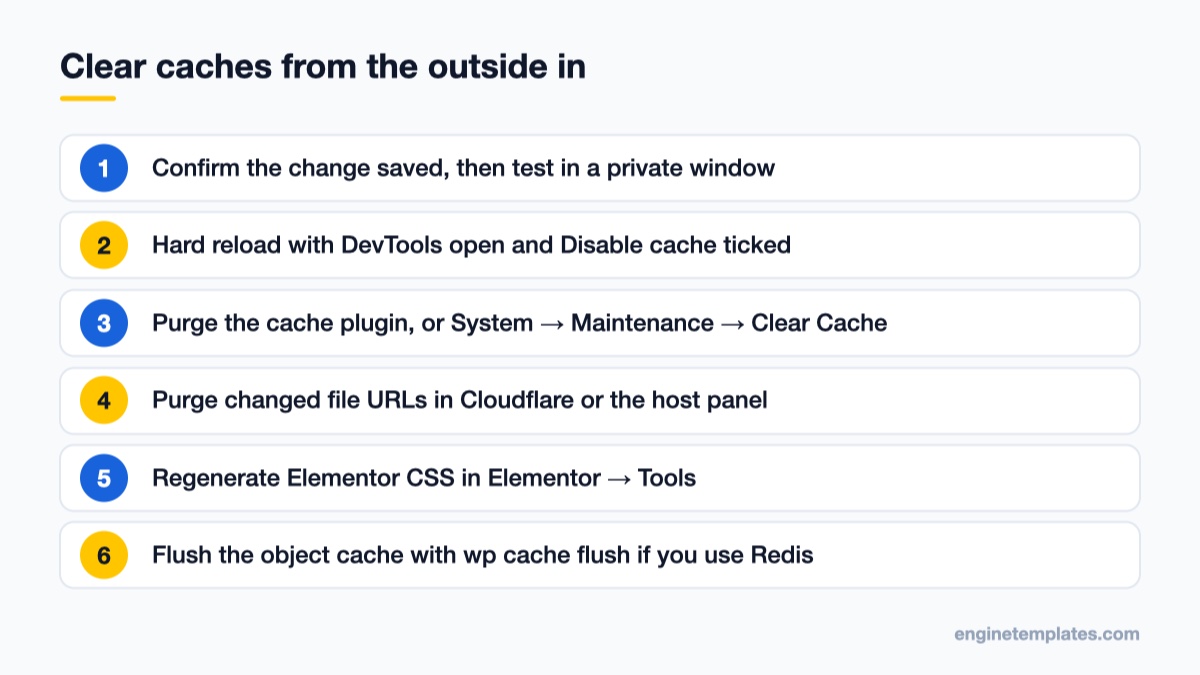
The trick is to work from the outside in. Rule out the browser first because it is fastest to test, then move toward the server. Clearing everything at once also works, but you learn nothing about which layer caused it, and a full CDN purge on a busy site sends every request straight to your server until the cache refills.
Step 1: Confirm it is a cache problem
Before clearing anything, make sure the change was actually saved. Open the post, the Customizer, the Site Editor or the Joomla template style again and check that your edit is still there. If you edited a file over FTP, open it on the server and confirm the new content was uploaded to the right theme folder. A very common mistake is editing the parent theme’s style.css while a child theme is active, or editing a Joomla template that is not the default style for that menu item.
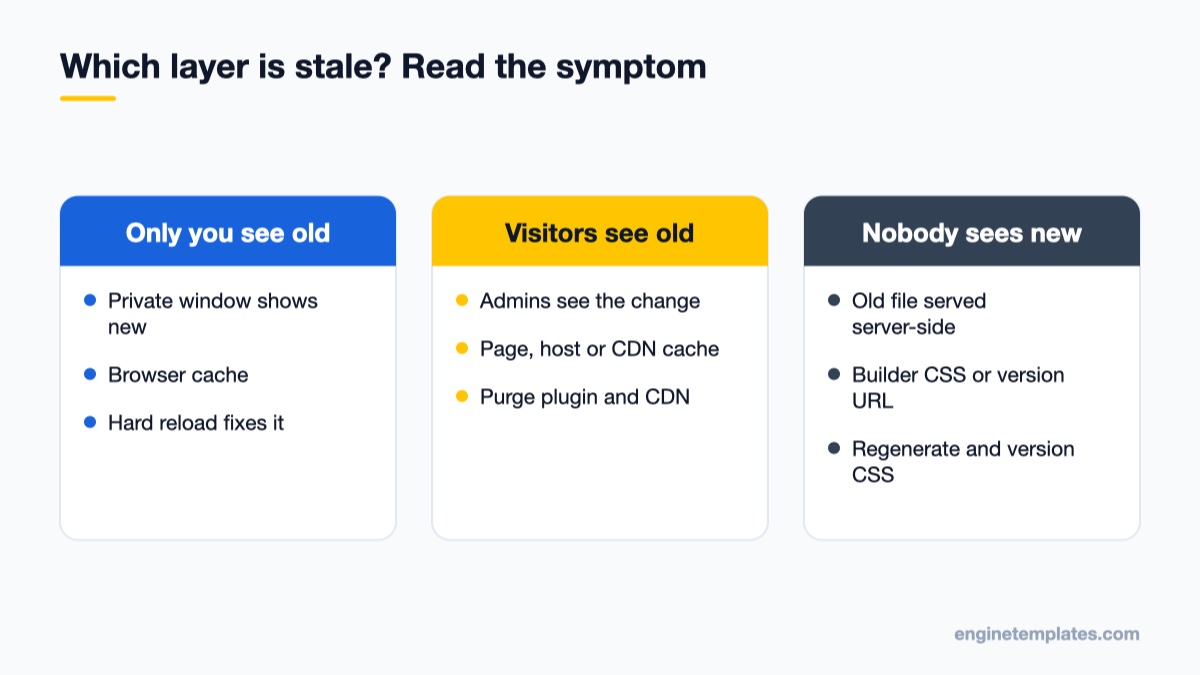
Then do a quick test that skips the browser cache completely: open the page in a private or incognito window, or on your phone using mobile data. Three outcomes are possible:
The change shows in private mode but not in your normal window: it is your browser cache. Go to Step 2.
The change shows for logged-in admins but not for visitors: it is a page cache, server cache or CDN, because those usually skip logged-in users. Go to Steps 3 and 4.
The change does not show anywhere: the old file is being served from the server side (generated CSS, a versioned stylesheet URL or a CDN). Go to Steps 4 to 6.
Step 2: Clear the browser cache properly
A normal reload often reuses cached CSS and JavaScript. Force the browser to fetch fresh copies:
Windows and Linux (Chrome, Edge, Firefox): press Ctrl + Shift + R or Ctrl + F5.
macOS (Chrome, Firefox): press Cmd + Shift + R. In Safari, hold Option and choose Develop → Empty Caches, then reload (enable the Develop menu in Safari’s settings first).
Developer tools: open DevTools (F12), go to the Network tab and tick Disable cache. While DevTools stays open, every reload fetches fresh files. This is the best option while you are actively editing a theme.
If a hard reload fixes it for you, your visitors will see the change once their cached copy expires. For CSS and JavaScript, you can make that happen immediately with the versioning fix in Step 6.
Step 3: Purge the page cache in WordPress and Joomla
Page caching stores the complete HTML of a page and serves it without running PHP. It is the reason a text change, a new menu item or a widget edit appears for you (logged in) but not for visitors.
Work from the browser toward the database so you learn which layer was stale.
WordPress cache plugins
Almost every WordPress cache plugin adds a purge option to the admin toolbar at the top of the screen, as well as a button on its own settings page. Look for an entry with a name such as “Purge All”, “Clear cache” or “Delete cache” and use it after design changes. Most plugins clear the cache for a single post automatically when you update it, but changes to menus, widgets, the Customizer, global styles or theme files affect every page, so they usually need a full purge. If you are choosing a cache plugin, our LiteSpeed Cache vs. WP Rocket comparison explains how each one handles clearing.
If your site uses a persistent object cache (Redis or Memcached), also flush it. With WP-CLI on the server, the command is:
wp cache flush
The WP-CLI documentation notes that this clears the object cache only, not page caches, and that on multisite with a persistent object cache it usually flushes the whole network. Run it at a quiet time on busy sites.
Joomla cache
In Joomla 4 and Joomla 5, go to System → Maintenance → Clear Cache. You will see the cache groups for the site (com_content, mod_menu, page and so on). Tick the checkbox in the table heading to select all groups, then use the toolbar button to delete them. If you only want to remove outdated entries, use the expired cache option instead; it is slower but leaves current entries in place.
System → Global Configuration → System tab → System Cache: off, conservative caching or progressive caching. This caches component and module output.
System → Plugins → System – Page Cache: when enabled, it caches whole pages for guests. Its Advanced tab lets you exclude menu items or URLs that change often.
If you clear cache often while working on a live Joomla site, the frontend button described in our guide on clearing Joomla cache from the frontend saves trips to the administrator.
Step 4: Clear the server and CDN caches
If a page cache purge did not help, the old copy may be stored before the request even reaches WordPress or Joomla.
Host-level cache
Managed WordPress hosts and many cPanel or Plesk hosts run their own cache layer. It is usually cleared from the hosting control panel, and some hosts also add a “Purge cache” item to the WordPress admin toolbar through a must-use plugin. If you are not sure whether your host caches pages, check the response headers: in DevTools, open the Network tab, click the main document request and look under Response Headers for headers such as x-cache, x-varnish, x-litespeed-cache or cf-cache-status. A value like HIT tells you a cache answered the request instead of PHP.
Cloudflare and other CDNs
In Cloudflare, open your site’s Caching → Configuration page and use the Purge Cache section. Cloudflare’s documentation recommends purging single files by URL rather than purging everything, because a full purge sends all traffic to your origin until the cache refills. For a stylesheet change, purging only the CSS file URL (and the pages that use it, if HTML is cached) is enough.
While you work on a design, Cloudflare’s Development Mode temporarily bypasses the cache so you see changes straight away. Remember that it switches itself off after a few hours.
Step 5: Regenerate page builder and optimization CSS
This is the layer people forget. Elementor and several optimization plugins do not load your styles directly; they write combined, minified CSS files to the uploads folder and keep serving them until they are rebuilt.
Who sees the old version tells you where to look first.
Elementor: go to Elementor → Tools and use the regenerate button on the General tab. Elementor’s help center now calls it Clear Files & Data (older versions label it “Regenerate CSS & Data” or “Regenerate Files & Data”). Recent versions also offer it from the Edit with Elementor menu in the admin bar while you view a page. Clear your page cache afterwards so the pages reference the new files.
Minify and combine features: if your cache or optimization plugin combines CSS and JavaScript, clear its minified files too. Many plugins do this together with the page cache purge, but some keep a separate “clear minified files” option.
Joomla templates with compiled styles: some Joomla template frameworks compile SCSS or LESS into a CSS file and cache it. If your template has a “compile” or “clear template cache” option in its style settings, use it after changing colors or fonts in the template options.
If Elementor pages still look broken or unstyled after regenerating, our older guide to Elementor cache plugins covers how those plugins interact with Elementor’s own CSS files.
Step 6: Stop stale CSS for good with file versioning
Browsers and CDNs cache a file by its URL. If the URL never changes, they have no reason to fetch it again. WordPress solves this with a version number added to the stylesheet URL as a query string, like style.css?ver=1.0.2. When the version changes, the URL changes and everyone downloads the new file.
The catch is the default. According to the wp_enqueue_style() reference, if the version argument is false, WordPress uses the installed WordPress version. That means your child theme stylesheet only gets a new URL when WordPress itself updates, not when you edit the file. Passing null removes the version entirely, which is even worse for caching.
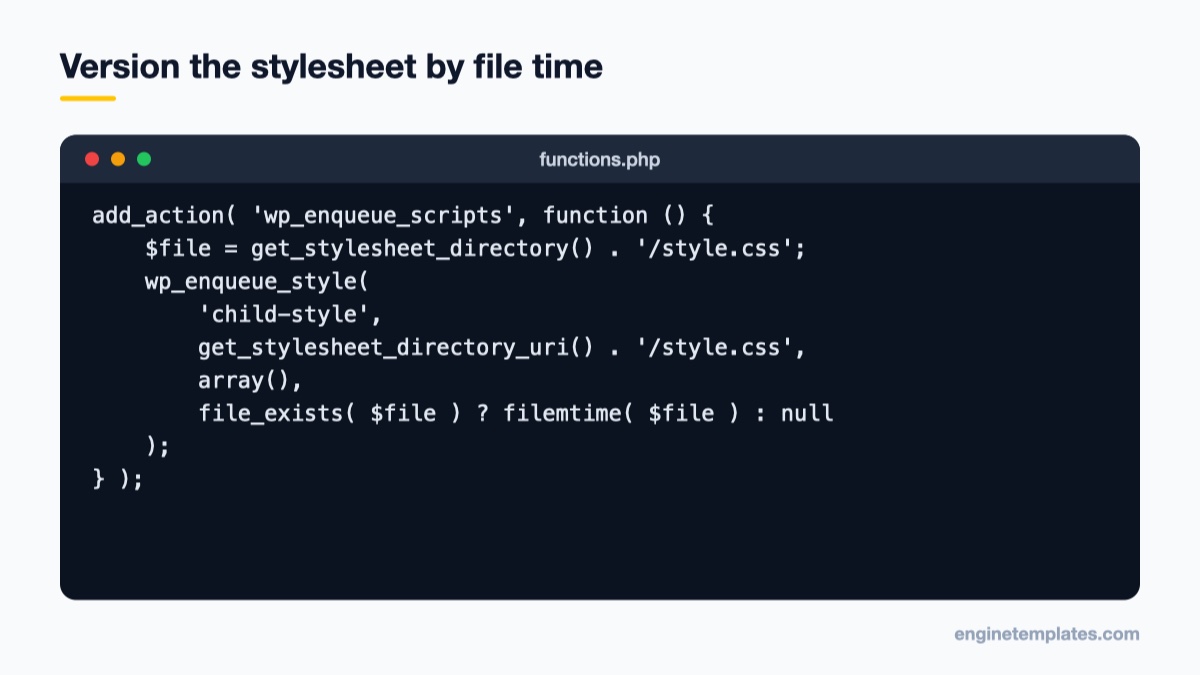
The reliable fix is to use the file’s last-modified time as the version. Every time you save the file, the timestamp changes and so does the URL. Add this to your child theme’s functions.php:
filemtime() changes the CSS URL every time you save the file.
get_stylesheet_directory() returns the server path of the active (child) theme without a trailing slash, and get_stylesheet_directory_uri() returns its URL, so the same code works on any host. If your child theme already enqueues style.css under another handle, change only the version argument of that existing call rather than loading the file twice. The same pattern works for custom JavaScript with wp_enqueue_script().
In Joomla 4 and 5, assets registered through the Web Asset Manager in a template’s joomla.asset.json get a version string as well. If you add CSS through the template’s user.css file in Cassiopeia or a child template, a Joomla cache clear plus a hard reload is usually enough, because Joomla appends its media version to template assets. After a Joomla update or extension install, that media version changes automatically.
Common mistakes that look like caching
If you have cleared every layer and the change still does not appear, the cause is probably not a cache:
Editing the wrong theme or template. In WordPress, check Appearance → Themes to see which theme is active. In Joomla, check System → Site Template Styles to see which style is the default and whether a menu item is assigned to a different one.
CSS specificity. Your rule is loading but a more specific rule wins. Inspect the element in DevTools: if your rule appears crossed out, it is being overridden, not cached. Make the selector more specific or load your file after the theme’s stylesheet.
Global styles overriding theme files. In block themes, colors and fonts saved in the Site Editor are stored in the database and override theme.json. Our guide to customizing colors and fonts with theme.json explains how to reset those customizations.
A PHP error stopping output. If part of the page is missing rather than old, check the error log. Our guide to reading PHP error logs shows where to find them on WordPress and Joomla.
Cached redirects or DNS. After moving a site to a new server or domain, your computer may still resolve the old IP address. Test from another network or check the IP in DevTools under the request’s remote address.
A quick checklist for every design change
Once you know the layers, the routine takes under a minute:
Save the change and confirm it was stored (re-open the editor or file).
Hard reload with DevTools open and “Disable cache” ticked.
Regenerate page builder CSS if you changed global styles in Elementor or a template framework.
Purge the page cache (WordPress plugin or Joomla System → Maintenance → Clear Cache).
Purge the changed file URLs in your CDN, or the host cache if your host runs one.
Check the page in a private window to see what visitors see.
Themes that keep their styles in a single, well-organized child-theme-friendly stylesheet make this routine much easier. ET Startup Onepage is a lightweight one-page WordPress theme where most design changes live in one place, ET Fixman is built for Elementor if you prefer editing visually (remember Step 5), and Joomla users can start from ET Epic, a free business template. You can browse more in our free WordPress themes collection.
Your next step: add the filemtime() version to your child theme today. It takes two minutes and removes the most frequent reason a design change “does not work” for your visitors.
We're a Digital Team from EngineTemplate with 5 content experts. Our team has 5 years exp in open source Joomla and WordPress, we make daily blogs and build useful resources for everyone who is having issues with open source while using it.
 ET Digital Team