A post scheduled for 9 AM doesn’t publish until someone visits the site at noon. A backup plugin configured to run overnight silently skips a night, then runs the next morning instead. A cache that’s supposed to clear on a schedule keeps serving stale content well past when it should have refreshed. All three symptoms trace back to the same root cause, and it’s one of the more surprising things about how WordPress specifically handles scheduling: it doesn’t actually have a real, independent clock running scheduled tasks at all. Neither, by default, does a typical Joomla setup, though the details differ. Here’s what’s actually happening, and the fix that solves nearly every version of this problem.
This is also a genuinely common source of confusion because nothing about it looks broken in the conventional sense. There’s no error message, no red warning in the admin dashboard, no failed-task notification — a scheduled task that never got triggered simply doesn’t run, silently, and the first sign of a problem is usually a person noticing something that should have happened didn’t, well after the fact. Understanding the actual mechanism turns that vague, hard-to-diagnose symptom into a specific, well-understood, fixable cause.
How WP-Cron Actually Works (It’s Not a Real Cron)
How WordPress’s WP-Cron system actually works
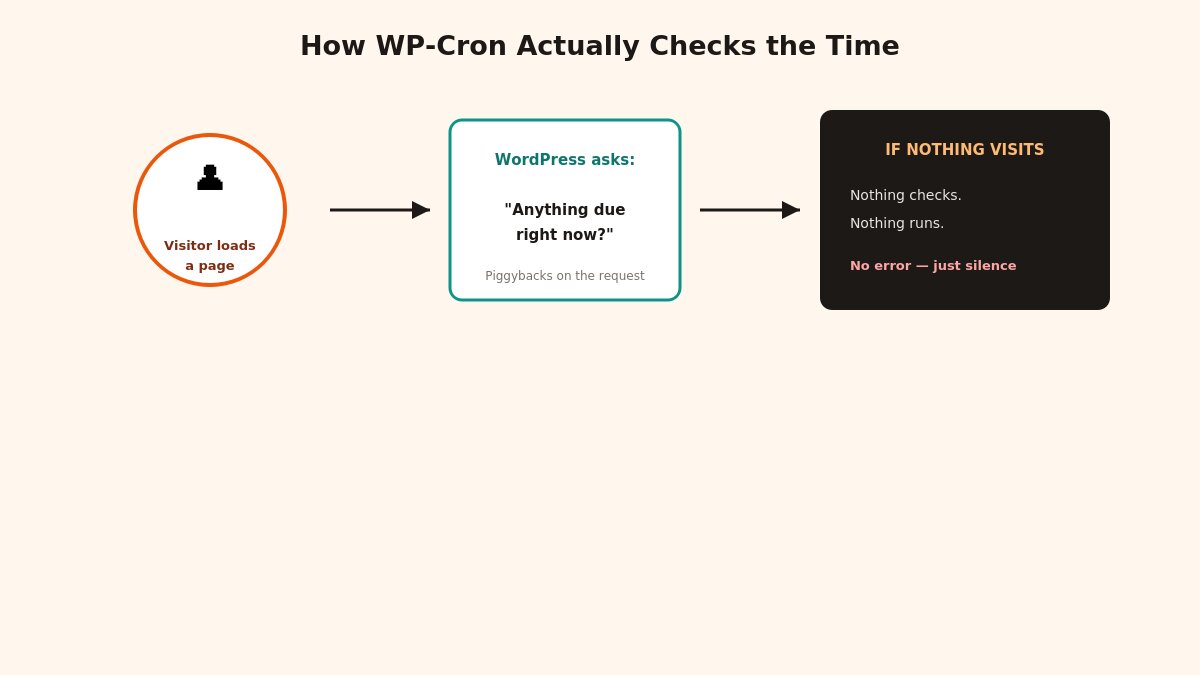
Despite the name, WP-Cron isn’t a true system-level cron job running independently in the background, checking the clock and firing scheduled tasks on time regardless of anything else happening on your site. Instead, WordPress checks whether any scheduled tasks are due every time a page on your site loads — a visitor requests a page, and as part of handling that request, WordPress also asks “is anything scheduled to run right now?” If something’s due, it runs at that point, piggybacking on the visitor’s page load rather than running independently.
This design made a certain kind of sense for a huge number of WordPress sites: if you have reasonably steady traffic, a page loads every few minutes at most, and scheduled tasks fire close enough to on time that nobody notices the difference. The problem surfaces specifically on sites where this assumption breaks down.
Why This Causes Real Problems
Situations where WP-Cron reliability breaks down
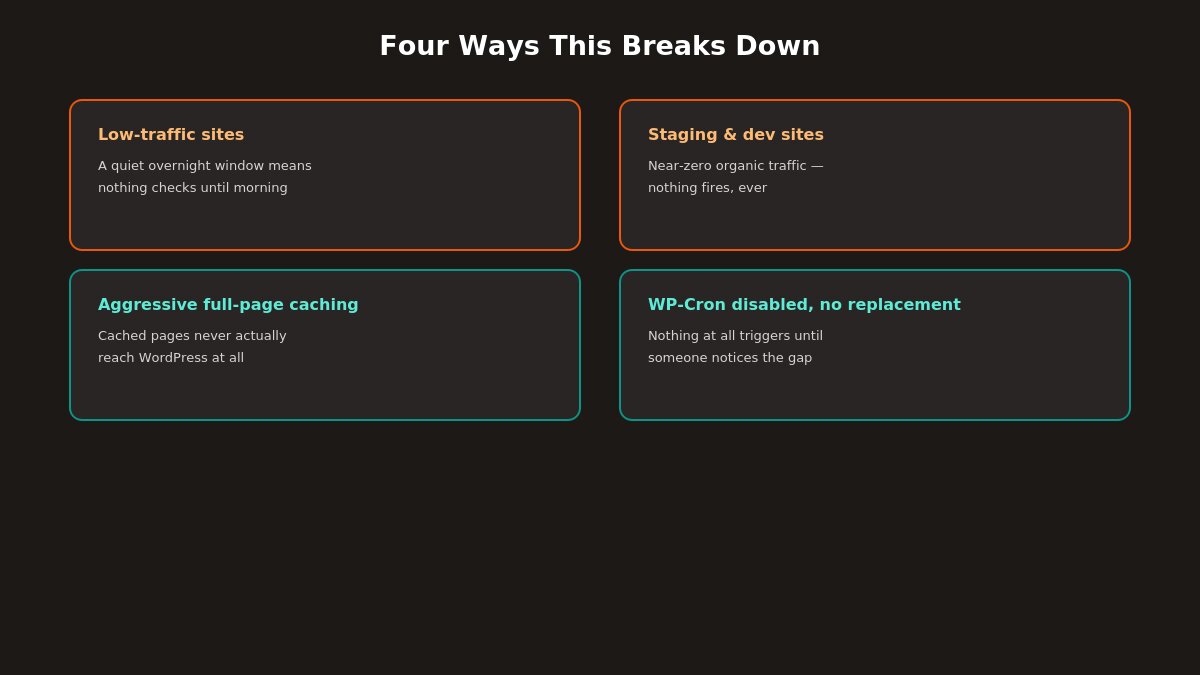
A few common situations where WP-Cron’s visitor-triggered design becomes a genuine, recurring problem:
Low-traffic sites. A site that goes hours without a single visitor also goes hours without WP-Cron checking whether anything’s due — a task scheduled for 3 AM might not actually run until the first visitor arrives well into the morning.
Staging and development sites. These often have essentially no organic traffic at all, meaning scheduled tasks can sit indefinitely without ever triggering, which is confusing if you’re testing scheduling-dependent functionality and can’t figure out why nothing seems to fire.
Sites behind aggressive full-page caching. If a caching layer serves a cached version of a page without the request ever actually reaching WordPress itself, that page load never triggers the WP-Cron check at all — meaning a heavily cached, technically high-traffic site can still experience unreliable scheduling, for a different reason than a genuinely low-traffic site.
Sites where WP-Cron has been explicitly disabled (a common performance optimization, covered below) without a proper real cron job configured to replace it — in this specific case, nothing at all triggers scheduled tasks until someone notices and fixes the gap.
The Fix: Disable the Default Behavior, Use a Real Cron Job Instead
Setting up a real server cron job to replace WP-Cron’s default behavior
The actual fix addresses the root cause directly: stop relying on visitor traffic to trigger scheduling checks, and instead use your server’s real, independent cron system to trigger them on a reliable schedule regardless of traffic.
Disable WP-Cron’s default per-page-load behavior by adding this line to your wp-config.php file: define('DISABLE_WP_CRON', true); — this stops WordPress from checking on every page load, which also has a small, genuine performance benefit, since that check itself adds a small amount of overhead to every single page load.
Set up a real server-level cron job through your hosting control panel (cPanel and most modern hosts have a dedicated Cron Jobs section) to visit wp-cron.php on a reliable schedule — commonly every 5 to 15 minutes, depending on how time-sensitive your scheduled tasks actually are.
The typical cron command looks something like wget -q -O - https://yoursite.com/wp-cron.php >/dev/null 2>&1 or an equivalent curl command, configured through your host’s cron job interface rather than something you need to construct entirely from scratch — most hosts provide a simple form for this rather than requiring raw command-line syntax knowledge.
Verify it’s actually working after setup by scheduling a test post a few minutes out and confirming it publishes on time, rather than assuming the configuration is correct just because you followed the steps.
This moves scheduling from “triggered incidentally by whoever happens to visit next” to “triggered reliably by your server’s actual clock,” which is the fix for every variation of the problem covered above.
The Performance Angle Nobody Mentions
The performance overhead of WP-Cron’s default checking behavior
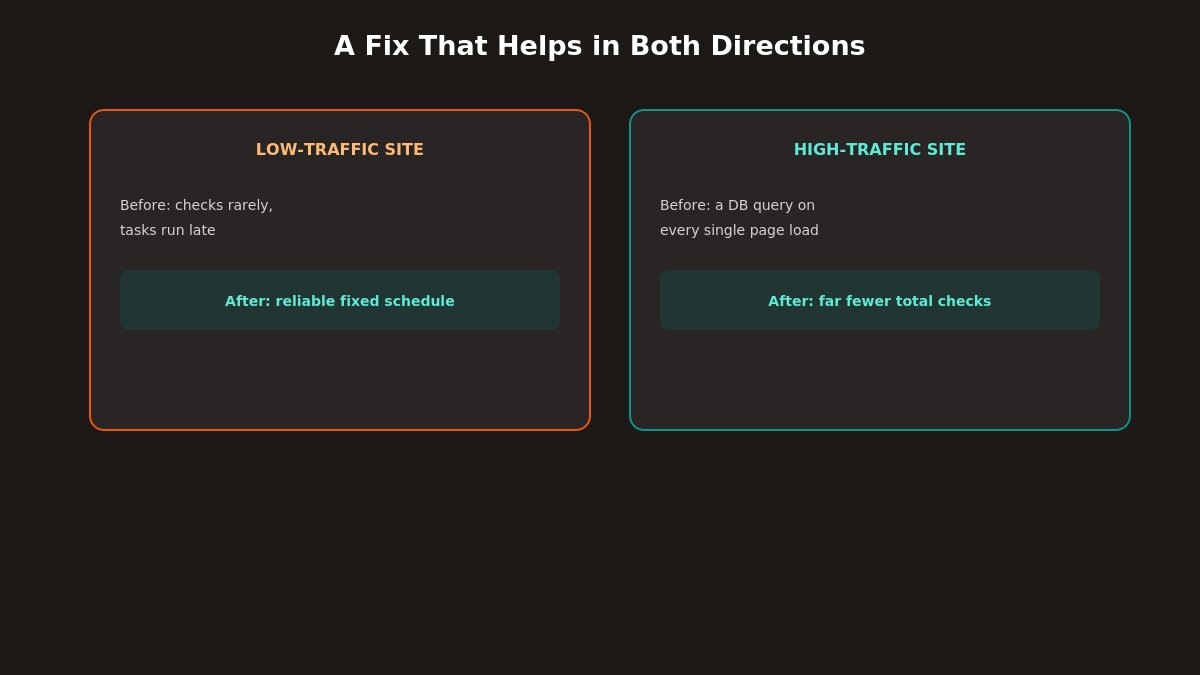
Beyond scheduling reliability, there’s a second, less-discussed reason to make this same change: the default per-page-load check itself carries a small but real performance cost. Every single page load on a site with default WP-Cron behavior triggers a database query asking whether anything is due — on a low-traffic site this is negligible, but on a genuinely high-traffic site, that’s a database query happening on every single page view, purely to check something that, on a busy site, is rarely actually due at that exact moment anyway.
Moving to a real cron job flips this entirely: instead of checking on every page load (frequent, but tied to unpredictable traffic patterns), you check on a fixed schedule (say, every 5 minutes) regardless of traffic. For a high-traffic site, this is usually a net reduction in total checks — far fewer checks than “once per page load” would produce, while still checking frequently enough that nothing meaningfully time-sensitive slips through a long gap. This makes the fix genuinely beneficial in both directions: more reliable timing for low-traffic sites, less overhead for high-traffic ones.
A Worked Example: A Missed Overnight Backup
Worked example of a missed overnight backup due to WP-Cron
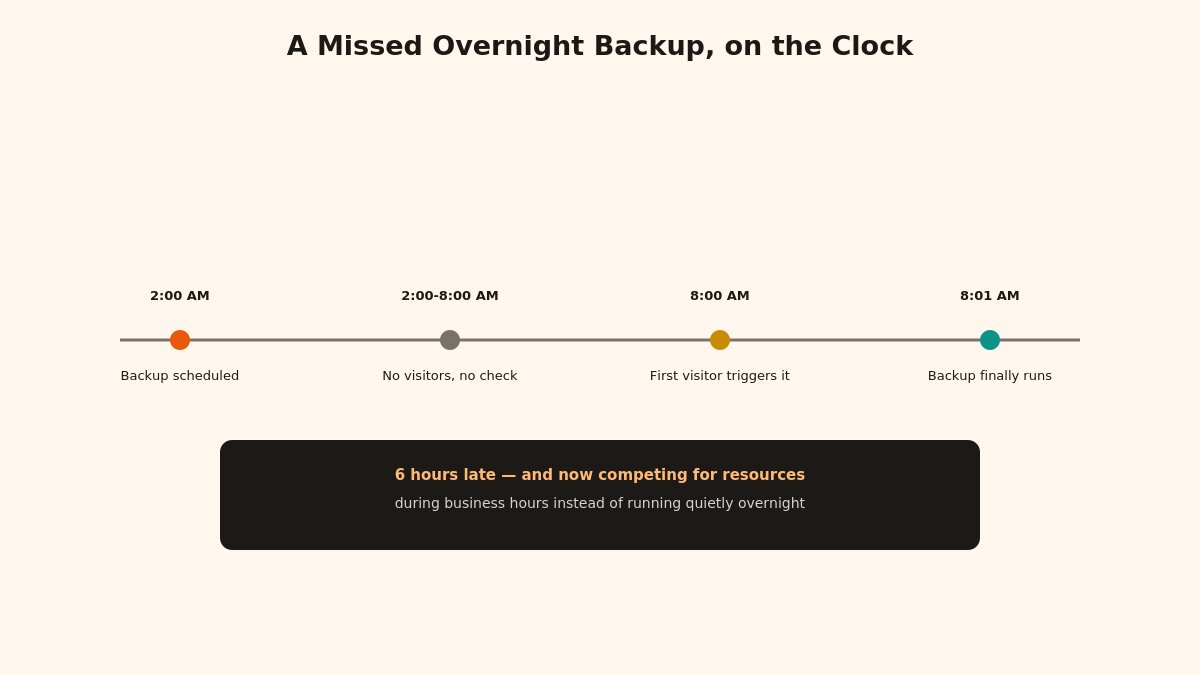
Here’s how this actually plays out in a realistic scenario, since the abstract explanation is easier to internalize with a concrete timeline attached. Say a backup plugin is configured to run its full site backup at 2 AM daily, and the site in question is a business site with almost all its traffic during business hours — nothing overnight.
At 2 AM, nothing happens, because nothing is visiting the site to trigger the WP-Cron check in the first place. The backup doesn’t fail with an error message; it simply never gets asked to run at all. The site owner has no idea anything is wrong, since there’s no failure notification — there’s just silence where a success notification should have been. The first visitor of the day arrives around 8 AM, their page load triggers the overdue WP-Cron check, and the backup finally runs then — six hours late, and now competing for server resources during the site’s actual business hours instead of running quietly overnight when it was actually intended to.
This is precisely the kind of problem that’s easy to miss for a long time, because nothing about it produces a visible error — it just quietly runs at the wrong time, or occasionally not at all if the gap between visits is long enough that a plugin’s own internal scheduling logic decides to skip a run rather than run several backups in rapid succession to “catch up.” Setting up a real cron job, as covered above, closes this gap directly — the backup runs at 2 AM regardless of whether a single visitor has shown up yet.
How Joomla’s Task Scheduler works compared to WordPress
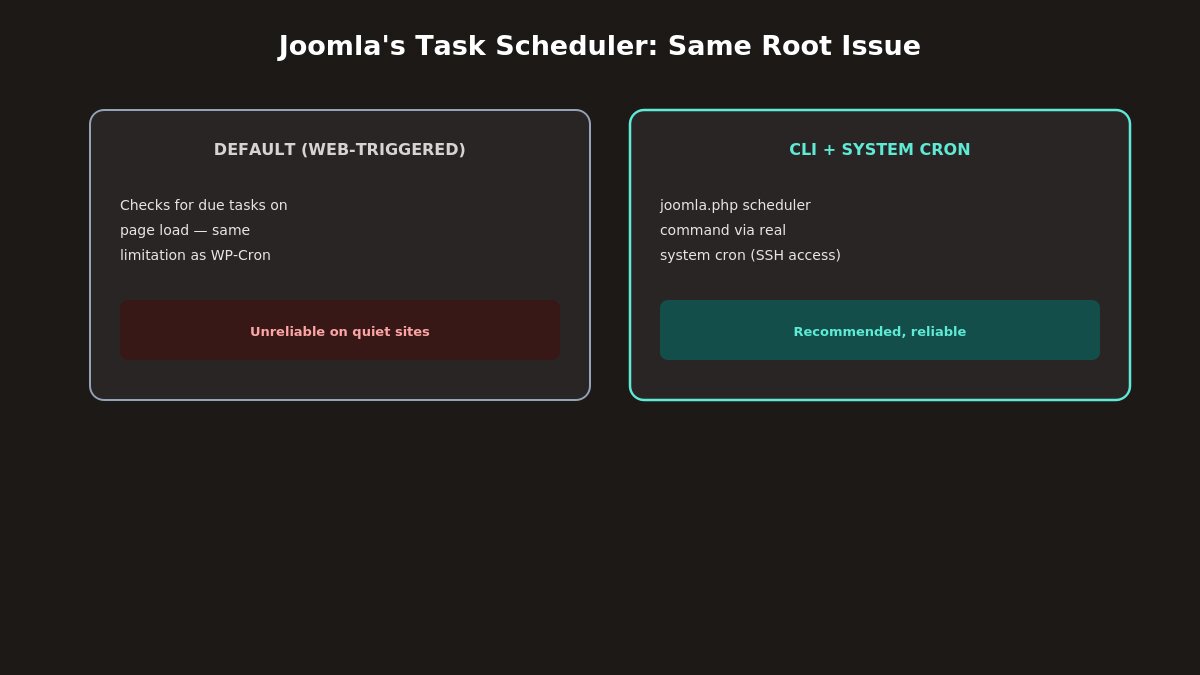
Joomla, since Joomla 4, includes a built-in Task Scheduler (System → Scheduled Tasks) that’s architecturally similar in one important way: by default, it also checks for due tasks when a page loads, rather than running as a fully independent background process — the same fundamental limitation WP-Cron has, for the same underlying reason.
The fix follows the same logic: Joomla’s Task Scheduler can be configured to run via a real system cron job instead of relying on page-load triggers, which is the reliable, recommended setup for anything time-sensitive. This is typically configured by setting up a cron job that runs Joomla’s CLI-based scheduler command directly, through SSH access or your host’s cron interface, rather than depending on a visitor’s page request to trigger the check. The exact command references Joomla’s cli/joomla.php file with the scheduler-specific arguments — worth checking your specific Joomla version’s documentation for the precise current syntax, since this is one area where exact command details can vary slightly between versions.
If your host doesn’t provide SSH access for a CLI-based cron setup, Joomla’s Task Scheduler also supports a web-cron approach similar to WordPress’s, hitting a specific URL on a schedule via your host’s standard cron job interface — less ideal than the CLI approach but considerably more reliable than depending entirely on organic visitor traffic.
Recognizing the Symptoms
Common symptoms of cron and scheduling problems
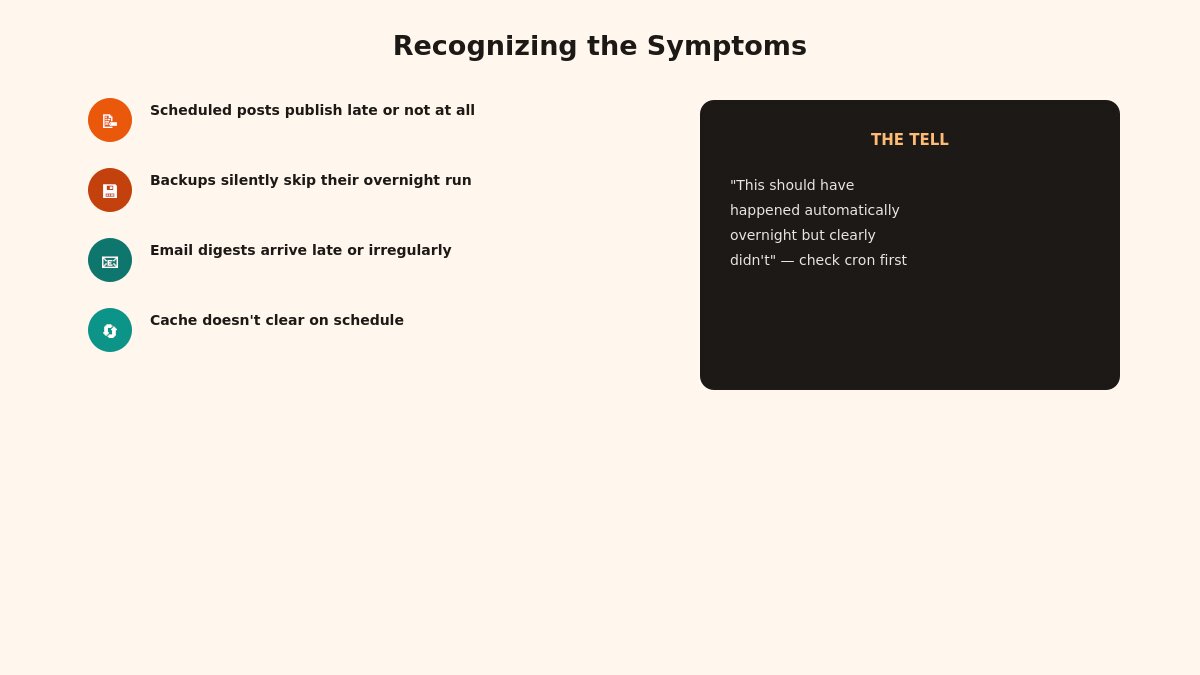
A few specific symptoms worth recognizing as likely scheduling issues rather than something else entirely:
Scheduled posts publishing late or not at all — the most visible, common symptom, and usually the first thing that gets noticed and reported.
Backup plugins silently skipping their configured schedule, only running once someone happens to visit the site (or the admin dashboard specifically, since some scheduled tasks are tied to admin-area page loads rather than any page load) after the scheduled time has passed.
Email digests, notification summaries, or scheduled reports arriving late or irregularly, rather than at a consistent time each day.
Cache-clearing or content-refresh tasks not firing on schedule, leaving visitors seeing stale content longer than intended.
Any “this should have happened automatically overnight but clearly didn’t” report from a client or team member — this general pattern, more than any single specific symptom, is the strongest signal to check cron configuration specifically.
What Happens to Tasks That Get Missed Entirely
A detail worth understanding beyond just “tasks run late”: on a genuinely quiet site — a staging environment, or a production site with an unusually long traffic gap — multiple scheduled tasks can pile up waiting for the same delayed trigger. When a visitor finally arrives and WP-Cron fires, it doesn’t necessarily run every overdue task simultaneously in a way that’s transparent to you — some plugins are built to handle a backlog of overdue tasks gracefully, running them in sequence; others may only run the most recent occurrence and silently skip earlier missed runs, particularly for recurring tasks where running every missed instance wouldn’t make sense (there’s little point running six missed hourly cache-clear tasks back to back the moment traffic finally arrives).
This matters because “the task eventually ran, just late” and “the task didn’t run at all for that scheduled instance” are genuinely different outcomes, and which one you get depends on the specific plugin’s own internal handling of overdue tasks, not on WordPress’s core scheduling system itself. If you’re troubleshooting a scheduling issue and confirm tasks are now running via a proper cron job, it’s still worth checking whether any data from the affected gap period — a day’s analytics summary, a specific backup, a batch of scheduled emails — was actually lost entirely rather than just delayed, particularly for anything where the specific timing or specific missed instance genuinely matters to your operations.
Managing Cron Across Multiple Sites
Managing cron jobs across multiple WordPress or Joomla sites
If you manage several WordPress or Joomla sites — common for agencies, freelancers, or anyone running more than one project — this scheduling issue is worth addressing systematically rather than fixing reactively, site by site, only after a client notices a problem.
A few practical habits worth adopting at this scale:
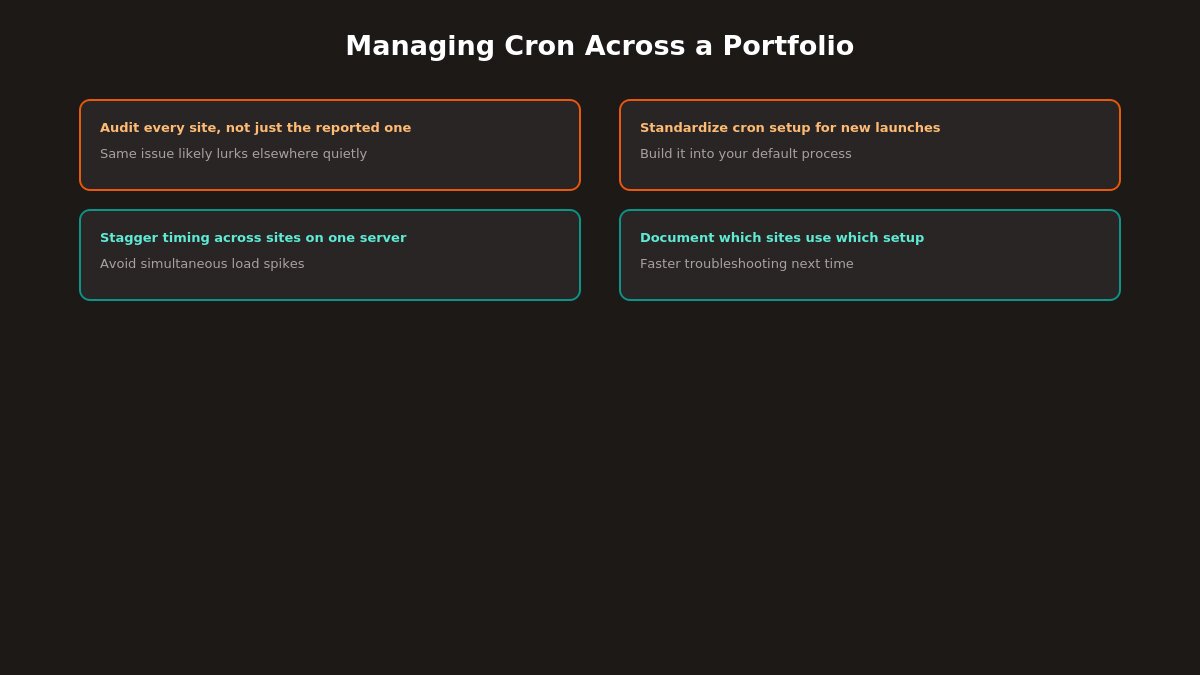
Audit every site you manage for its current WP-Cron or Task Scheduler configuration, rather than assuming a fix applied to one site was also applied everywhere else. It’s common for this to get fixed on whichever site happened to have a visible, reported problem, while other sites in the same portfolio quietly carry the same underlying issue without anyone noticing yet.
Standardize your cron job setup across your hosting environment where possible, so every new site you launch gets a real server cron configured as part of your standard setup process, rather than defaulting to WP-Cron’s page-load behavior and only fixing it after something goes wrong.
Stagger cron job timing slightly across sites sharing the same server, particularly if you’re managing many sites on one hosting account — firing dozens of cron jobs at the exact same minute mark can create an unnecessary, avoidable server load spike, when spreading them across different minutes within the same general window achieves the same scheduling reliability without the simultaneous load.
Document which sites use which approach (default WP-Cron, real server cron, disabled entirely) somewhere accessible to your whole team, so troubleshooting a future scheduling complaint starts from known configuration rather than requiring someone to first figure out what’s currently in place before they can even begin diagnosing the actual problem.
This kind of systematic approach turns a recurring, one-off troubleshooting task into a solved problem across your entire portfolio, rather than something that resurfaces independently on each site whenever a client happens to notice and report it.
Why WordPress Built It This Way in the First Place
It’s worth understanding the original reasoning, since “why does WordPress do this at all” is a fair question once you understand the trade-off. WordPress historically needed to work reliably across an enormous range of hosting environments — including budget shared hosting plans that don’t offer any way to configure a real system-level cron job at all. Building scheduling around page-load triggering meant every WordPress site, regardless of hosting sophistication, got some form of scheduling functionality out of the box, without requiring server-level configuration access that a meaningful share of WordPress’s actual hosting base simply didn’t have available to them.
This is a reasonable design trade-off for a platform aiming for the broadest possible hosting compatibility, even though it creates exactly the reliability gap covered throughout this guide for sites that don’t have steady traffic. Once you understand this origin, the fix makes intuitive sense too: if your specific hosting environment does support real cron jobs — and most paid, non-budget hosting does — you’re simply opting into the more reliable mechanism that WordPress’s default behavior was designed to work around not having, rather than fighting against how WordPress is supposed to function.
Confirm whether WP-Cron (or Joomla’s Task Scheduler) is actually disabled or relying on default page-load triggering — check wp-config.php for the DISABLE_WP_CRON constant, or Joomla’s scheduler settings, rather than assuming either state.
Check your site’s actual traffic pattern during the hours scheduled tasks are supposed to run — a site with genuinely low overnight traffic is a strong candidate for this exact problem.
Check whether a caching layer might be preventing requests from reaching WordPress or Joomla at all during relevant hours, which breaks the trigger mechanism even on a technically higher-traffic site.
Set up a real server cron job as described above if one isn’t already configured, rather than continuing to rely on incidental visitor traffic.
Test with a specific, time-bound task — a post scheduled a few minutes out, for instance — to directly confirm the fix worked, rather than waiting to see if a vague, general symptom improves over the following days.
If you’re not comfortable setting up a server-level cron job yourself, this is exactly the kind of task our custom work team can configure directly, and our ticket support team can help diagnose whether a specific scheduling symptom traces back to this cause or something else entirely.
The One Fix That Solves Almost Every Symptom
If you take one action from this guide, make it this: stop relying on visitor traffic to trigger your site’s scheduled tasks, and set up a real server-level cron job instead. It’s a genuinely small, one-time configuration change — a few minutes in your hosting control panel — and it directly resolves the underlying cause behind late posts, skipped backups, delayed notifications, and stale caches, rather than treating each symptom as a separate, unrelated problem to troubleshoot individually every time it comes up.
The broader lesson worth carrying forward is one about diagnosis in general: a symptom that looks random or intermittent — sometimes the backup runs on time, sometimes it doesn’t, with no obvious pattern — is often actually deterministic once you understand the real mechanism underneath it. What looks like unpredictable behavior from WP-Cron is, once you know it’s triggered by traffic rather than a real clock, completely predictable: it correlates directly with how much traffic your site happened to get during the relevant window. Recognizing that pattern is what turns a frustrating, hard-to-pin-down issue into a specific, fixable one.
Setting up a new site and want scheduling configured correctly from the start? Our Quickstart Installation Service handles this as part of every setup.
We're a Digital Team from EngineTemplate with 5 content experts. Our team has 5 years exp in open source Joomla and WordPress, we make daily blogs and build useful resources for everyone who is having issues with open source while using it.
 ET Digital Team